












Engagement reads weak → rejected
Activity registers → approved
Quick Answer
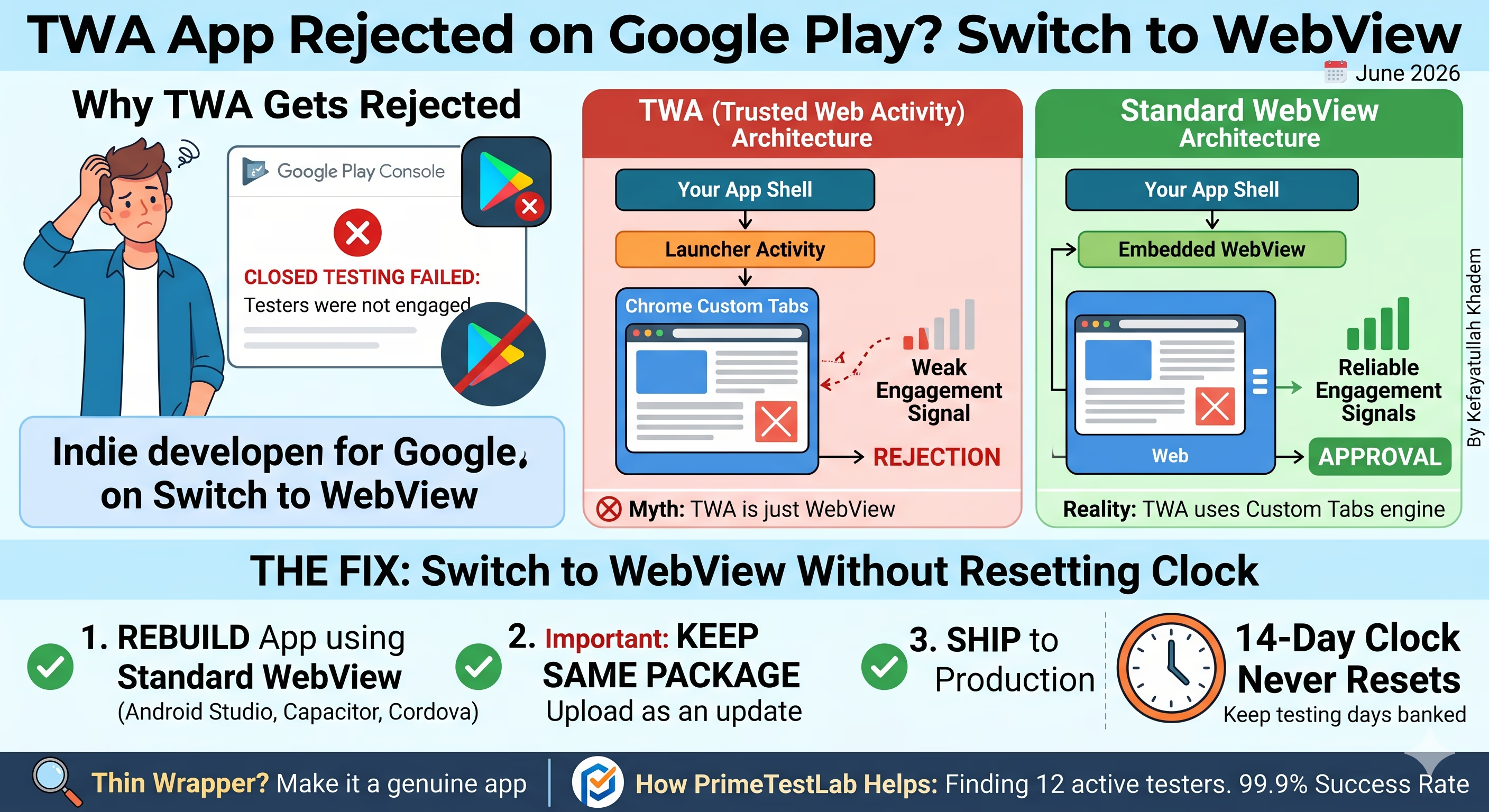
If your TWA app keeps failing closed testing with a "testers were not engaged" message, the most reliable fix in our experience is to rebuild it as a standard WebView app (Android Studio WebView, Capacitor, or Cordova) and ship that build to production - not the TWA. Keep the same package name and upload it as an update so your 14-day clock never resets. WebView fixes the engagement-signal problem, but it does not exempt you from the thin-wrapper review, so make it a genuine app. And if the real bottleneck is finding 12 active testers for 14 straight days, that is exactly what PrimeTestLab handles - from $19.99, testing typically starting in 4-6 hours.
This is one of the most frustrating rejections an indie developer can hit. Your testers were genuinely active. You had your 12 people. The 14 days passed. And Google still came back with "your testers were not engaged enough." If you built your app as a Trusted Web Activity (TWA) or a PWA wrapper, you are not imagining the pattern - across 9,800+ apps we have onboarded, wrapper builds run into this specific rejection far more often than standard native or WebView builds. This guide explains why, shows you the architecture difference that matters, and walks through switching to WebView without throwing away the testing days you already banked.
Table of Contents
Why Do TWA Apps Run Into Closed Testing Rejections?
A Trusted Web Activity renders your website through Chrome's Custom Tabs surface rather than drawing the screens inside your own app. It is a fast way to turn a site or PWA into something installable, and for plenty of production apps it works fine. The trouble shows up specifically when a personal developer account has to clear the mandatory 14-day closed testing requirement before production access.
In our experience helping over 9,800+ apps through that process, TWA and PWA-wrapper builds hit the "testers were not engaged" rejection far more often than standard native apps, even when the testers were genuinely active every single day. The pattern is consistent enough that we now steer developers away from TWA whenever an app still has to pass the 14-day closed test.
Weak engagement signals
The activity Google's review reads appears to come through weaker when the content runs in Chrome's surface instead of inside your app's process. Real usage can look like low usage.
"Testers not engaged" rejection
The most common message we see on TWA builds. Testers opted in, installed, and used the app daily, yet the production-access review still flags engagement as insufficient.
Low active users in Play Console
Some developers also report unexpectedly low active-user counts on the dashboard for TWA builds, which lines up with the same Chrome-surface behavior.
Repeat rejections on resubmit
Because the architecture is the root cause, resubmitting the same TWA build tends to fail the same way - which is why patching rarely fixes it and a rebuild does.
An honest caveat: Google does not publicly document exactly which signals it weighs at the production-access review stage, so treat the precise mechanism as our observation, not official policy. Be skeptical of any forum post claiming to know the exact telemetry. What we can report confidently is the outcome we keep seeing: TWA builds get rejected for engagement, and comparable WebView builds get approved.
What a TWA Actually Is (and How It's Built)
Before fixing the rejection, it helps to understand exactly what you shipped. A Trusted Web Activity is an Android app that is, in essence, your website running fullscreen inside a real browser engine - with no address bar, no browser chrome, nothing that tells the user they are looking at a web page. To the user it looks and feels like a native app. Under the hood, it is your live website.
TWAs are usually generated with Google's Bubblewrap CLI or PWABuilder, both of which sit on top of Google's androidbrowserhelper library. You point the tool at a URL, it produces an Android project, you sign it and upload the AAB to Google Play.
Why Developers Reach for a TWA
One codebase
You already have a website (ideally a PWA). A TWA gets it on the Play Store without rewriting in Kotlin, Flutter, or React Native.
Instant updates
Because the app loads your live site, you ship changes by deploying your website - no app update, no review queue.
Cheap and fast
Generating a TWA takes minutes, not weeks. For an existing PWA it is the lowest-effort path onto Android.
The Trade-Off That Causes the Rejection
The same thing that makes a TWA cheap makes it fragile for closed testing:
- It needs the internet. It is a window onto your site, so a weak connection means a weak app unless your PWA has solid offline support.
- Play Store rejection risk. The Minimum Functionality / repackaged-content policy targets apps that are "just a website in a wrapper." A TWA with no real native capability can be rejected or removed, especially on new submissions. Adding native features (push notifications, offline mode, camera, share targets) is how you stay on the right side of that line.
- The engagement-signal problem covered above, which is why personal accounts facing the 14-day closed test keep getting the "testers not engaged" message.
The Misconception: A TWA Is NOT a WebView
This is the part most articles get wrong, and it is worth being precise because it changes how you fix the problem. A TWA does not use Android's WebView component at all.
"A TWA is just a WebView wrapper"
Android's WebView is a stripped-down, embeddable browser controlled by the app - older, with fewer features and weaker security isolation. A TWA does not use it.
A TWA uses the Custom Tabs engine
It hands your URL to the user's full installed browser (usually Chrome) and asks it to render the page fullscreen, with no UI - the real browser engine, not an embedded component.
Because a TWA uses the engine behind Custom Tabs, you get the same rendering engine, JavaScript engine, and security sandbox as the real Chrome browser, plus shared cookies and storage with Chrome (so a user already logged in on the web stays logged in), automatic browser updates, and full web-platform support. That is genuinely powerful for a normal published app - but it also means your screens run out-of-process, inside Chrome, not inside your own app. That is the root of both the engagement-signal dilution and the low active-user counts.
The Launch Flow, Step by Step
Android launches the TWA's LauncherActivity (from androidbrowserhelper).
The page opens in a fullscreen, chrome-less Custom Tab - no address bar, no tabs, no browser UI.
This is the "Trusted" in Trusted Web Activity. If the app cannot prove it owns the site, the address bar stays visible and the native illusion breaks.
The Trust Check: Digital Asset Links
Chrome only removes the address bar if the app can prove it owns the website, using Digital Asset Links. The app declares which website it represents, and the website must serve a file at /.well-known/assetlinks.json that names the app's package and its signing certificate fingerprint (SHA-256).
[{
  "relation": ["delegate_permission/common.handle_all_urls"],
  "target": {
    "namespace": "android_app",
    "package_name": "com.yourapp.name",
    "sha256_cert_fingerprints": [
      "AB:CD:EF:...:99"  // your signing cert SHA-256
    ]
  }
}]
App declares the site
The manifest names the https domain the app represents.
Site serves assetlinks.json
The file lists the package name and SHA-256 fingerprint.
Chrome cross-checks both
Fingerprint must match the app's signing certificate.
If testers report seeing a browser address bar at the top of your "app," your assetlinks.json is missing, returning a 404, or carries the wrong SHA-256 fingerprint. Fix the file (and make sure the fingerprint matches the key Google Play actually signs with under Play App Signing) - but remember this only restores the fullscreen illusion. It does not fix the engagement-signal rejection, which needs the WebView rebuild.
The Engagement Signal Path: TWA vs WebView
The simplest way to understand the rejection is to follow where a tester's activity actually goes. In a TWA, your screens live one layer removed from your app - inside Chrome's Custom Tabs surface. In a WebView app, the same screens run inside your own application's process, attributed directly to your package. That single difference is what changes how strongly the activity registers.
Where a tester's activity is attributed
A WebView loads your site's URL inside your own application, so the activity registers against your package the way Google's review expects to see it. With a TWA, the Custom Tab in the middle is the extra hop that appears to dilute the signal. This is also why low numbers in your own web analytics (Google Analytics, Firebase in the web layer) on a TWA do not necessarily mean "Google sees zero usage" - but the practical result for closed testing is the same: a rebuild to WebView is the dependable fix.
How to Recognize a TWA (From the Outside and the Inside)
Not sure whether the app you (or a contractor) shipped is actually a TWA? Here is how to confirm it - first by eye, then definitively from the APK or a connected device.
Quick Visual Tells (as a user)
- It behaves exactly like the website, because it is the website.
- If the developer misconfigured it, you will see a browser address bar at the top - a dead giveaway (see the assetlinks bug above).
- Content updates without an app update appearing in the Play Store.
Definitive Technical Tells (inspecting the APK / device)
| Marker | What it means |
|---|---|
A DelegationService declaring the TRUSTED_WEB_ACTIVITY_SERVICE action |
The single most reliable fingerprint - only TWAs declare this. |
LauncherActivity (often ManageDataLauncherActivity) from com.google.androidbrowserhelper |
The Bubblewrap launcher. |
| A verified https domain in the app's link settings (assetlinks.json working) | The site the TWA wraps. |
No libflutter.so, no index.android.bundle, little native code |
It is a web wrapper, not a Flutter / React Native / native build. |
Confirm It With adb
On a connected device (or emulator), two commands settle it:
# Is it a TWA? Look for the delegation service:
adb shell dumpsys package <package.name> | grep -i DelegationService

# Which site does it wrap, and is the trust check passing?
adb shell pm get-app-links <package.name>
#   -> "verified"  = Digital Asset Links pass (fullscreen)
#   -> "1024"      = verification failed (address bar shows)
Reading the result: if you see a DelegationService and a LauncherActivity from androidbrowserhelper, you are almost certainly looking at a TWA. If instead you see a custom MainActivity, native .so libraries, and no delegation service, it is a real native (or Flutter / React Native) app - and the engagement-signal issue in this guide does not apply to it.
TWA vs WebView for Closed Testing: Side by Side
Both architectures wrap web content. The difference that matters for passing the 14-day closed test is where that content runs and how its activity is attributed. Here is how they compare on the metrics that decide whether you reach production in one cycle.
TWA / PWA Wrapper
Best for: apps already approved that do not need to clear closed testing.
Standard WebView
Best for: apps that must pass the 14-day, 12-tester closed test.
Framework Compatibility Check
WebView behaves differently from desktop Chrome. Pick your stack to see the one setting that most often breaks on launch.
Enable DOM Storage
SPA / Client RoutingSingle-page apps rely on localStorage and sessionStorage for client-side routing and auth state. If you do not turn on settings.domStorageEnabled = true, your web routing will break on launch - testers land on a blank screen or a stuck loader, which reads as "not engaged."
Also keep javaScriptEnabled = true and handle in-app navigation with a WebViewClient so deep links do not bounce out to Chrome.
Declare Native Permissions for Embeds & Uploads
No-Code BuilderWebView handles iframe embeds differently than desktop Chrome, and no-code builders lean on them heavily. Ensure your file-upload permissions are declared natively in AndroidManifest.xml (and wire up WebChromeClient.onShowFileChooser), or forms and media uploads silently fail.
Add <uses-permission android:name="android.permission.INTERNET"/> and, if you accept media, camera/storage permissions - then request them at runtime.
Add Offline Caching & Real Native Value
Static / CMSA plain static site loaded in a WebView is the textbook "thin wrapper." Set cacheMode = LOAD_DEFAULT for a usable offline fallback, add a branded error/retry screen for dropped connections, and layer in at least one native feature (push notifications, share target, or home-screen shortcuts).
This is what moves a CMS or static export from "framed website" to an app that clears the Minimum Functionality review.
The Fix: Build a Standard WebView App Instead
Instead of patching a TWA or trying to coax better signals out of it, the cleaner path is to rebuild the app around a WebView component and publish that build. You have three mainstream ways to do it, all of which load your site inside your own application:
The most direct route. Drop a WebView into your main activity, point it at your URL, and enable JavaScript and DOM storage. Maximum control, no extra framework.
If your app is already a web/PWA project, Capacitor wraps it in a native WebView shell and gives you native plugins (camera, push, storage). A clean upgrade path from a PWA without the TWA signal problem.
The older but still viable option. Same core idea: your web content runs inside the app's own WebView rather than in Chrome's Custom Tabs surface.
The Minimum WebView Setup (Copy-Ready)
The core is small: a WebView that loads your URL with JavaScript and storage enabled, keeps navigation inside the app instead of bouncing out to Chrome, and wires up the back-button handler Google's review expects. Switch the tab to your language and copy the baseline:
val webView = findViewById<WebView>(R.id.webview)
webView.settings.apply {
    javaScriptEnabled = true          // most sites need this
    domStorageEnabled = true          // localStorage / sessionStorage
    cacheMode = WebSettings.LOAD_DEFAULT
}

// Keep links INSIDE the app (this is the key difference vs a TWA)
webView.webViewClient = WebViewClient()
webView.loadUrl("https://yourwebsite.com")

// The exact back-button handler Google looks for
onBackPressedDispatcher.addCallback(this, object : OnBackPressedCallback(true) {
    override fun handleOnBackPressed() {
        if (webView.canGoBack()) {
            webView.goBack()
        } else {
            finish()
        }
    }
})
WebView webView = findViewById(R.id.webview);
WebSettings settings = webView.getSettings();
settings.setJavaScriptEnabled(true);      // most sites need this
settings.setDomStorageEnabled(true);      // localStorage / sessionStorage
settings.setCacheMode(WebSettings.LOAD_DEFAULT);

// Keep links INSIDE the app (this is the key difference vs a TWA)
webView.setWebViewClient(new WebViewClient());
webView.loadUrl("https://yourwebsite.com");

// The exact back-button handler Google looks for
getOnBackPressedDispatcher().addCallback(this, new OnBackPressedCallback(true) {
    @Override
    public void handleOnBackPressed() {
        if (webView.canGoBack()) {
            webView.goBack();
        } else {
            finish();
        }
    }
});
# Wrap an existing web/PWA project in a native WebView shell
npm install @capacitor/core @capacitor/cli
npx cap init "YourApp" "com.yourapp.name"

# Point Capacitor at your live site (capacitor.config.ts)
#   server: { url: "https://yourwebsite.com", cleartext: false }

npm install @capacitor/android
npx cap add android
npx cap sync

# Capacitor handles back-button + DOM storage natively.
# Open in Android Studio to build a signed AAB:
npx cap open android
The Three Things You Must Add to Pass Review
A bare WebView that just calls loadUrl() is still a thin wrapper. These three additions are what make it a real app and keep testers off blank screens:
Wire up OnBackPressedCallback (shown in the copy-ready snippet above) so Back walks the web history first, and only exits the app when there is nowhere left to go. Without this, one tap closes the whole app and looks broken - an instant thin-wrapper red flag.
Implement onReceivedError in your WebViewClient to show a real "you're offline" screen with a retry button instead of a white page. A blank screen on a dropped connection is the fastest way to look like a thin wrapper and fail review.
Push notifications (FCM), offline caching, a share target, file upload via WebChromeClient.onShowFileChooser, or device integration. Anything that makes the app meaningfully more than the URL it loads. This is what clears the Minimum Functionality policy.
If you do not want to hand-write the Android code, Capacitor wraps your existing web project in a native WebView shell and ships back-button handling, a native splash, and a plugin system (push, camera, filesystem) out of the box. It is the most direct PWA-to-WebView path that avoids the TWA Custom Tabs behavior entirely - you get the in-process WebView attribution and easy native features in one step.
Ship the app you tested. Build the WebView app, run it through closed testing, and publish that same build to production. Do not test one architecture and swap a different app in afterward - submitting a build to pass review and then replacing it in production runs into Google's deceptive-behavior policies and can get an app or account suspended. Going WebView permanently sidesteps that entirely, because what you test is what you release.
How to Switch Without Restarting Your 14-Day Clock
If you are already partway through testing, you do not have to start over. The 14-day counter survives an app update as long as you stay on the same track with the same package name. Here is the safe migration:
Keep the exact same applicationId as your current TWA. A different package name creates a brand-new app listing and forces a fresh 14-day cycle.
versionCode at least 1 higher than the TWA build, or Play Console will reject the upload as a duplicate version.Reliable loading, correct Android back-button handling, sensible offline and error states, and no blank screens. This is also what keeps you clear of the thin-wrapper review (next section).
Open your closed testing track, create a new release, and upload the WebView AAB. Do not create a new track or a new app.
Your opted-in testers simply update to the WebView version and continue. The clock keeps ticking, as long as at least 12 testers stay active.
Pushing an update to your closed testing track does not reset the 14-day counter. The clock keeps running, and Google treats active iteration during testing as a normal part of the process. This is what makes a mid-cycle TWA-to-WebView swap possible without losing the days you have already banked.
Does a WebView App Still Count as a "Thin Wrapper"?
This is the trap that catches developers who think WebView is a magic bullet. Switching from TWA to WebView addresses the engagement-signal problem, but it does not exempt you from Google's Spam and Minimum Functionality policy. A WebView that is nothing more than your homepage in a frame can still be rejected as a thin wrapper, the same way a bare TWA can.
It helps to see these as two separate gates. A testing service or a WebView rebuild can help you clear one of them, but not the other.
The Closed Testing Requirement
A count-and-duration check: at least 12 opted-in testers, active for 14 continuous days. WebView makes the engagement read reliably; PrimeTestLab supplies the testers.
Count + durationMinimum Functionality (Thin Wrapper)
A policy and quality decision: does the app offer real value, or is it just a framed website? Only a substantial app clears this - no service or architecture swap does it for you.
Policy + qualitySo the goal is not just "WebView instead of TWA," it is a WebView app with enough genuine value and native behavior to stand on its own. Practically, that means:
Back should navigate web history, then exit gracefully - not drop the tester on a blank screen or kill the app unexpectedly.
Show a real "you're offline" screen and a retry path. A white screen on a dropped connection is the fastest way to look like a thin wrapper.
Push notifications, a home-screen experience, device integration, offline caching - anything that makes the app meaningfully more than the URL it loads.
The Bait-and-Switch Rule (Do Not Break This)
Do not test a substantial app and then swap in a fundamentally different (or thinner) app for production. That is exactly the deceptive behavior Google suspends accounts for.
Do pick the WebView architecture, build it substantial, test that build, and ship that exact build. Commit to it through testing and production.
Want the deeper checklist on what triggers a quality rejection? Our guide on why closed testing gets rejected breaks down the most common policy and review failures beyond engagement.
Not Sure If Your App Is a TWA? We Check It the Moment You Order
You do not have to run adb commands or dig through your APK yourself. Yes - PrimeTestLab can confirm whether your app is a TWA for you. The moment you order our testing service, our team inspects your build, identifies whether it is a TWA or PWA wrapper, and if it is, we tell you exactly what to fix before the 14-day clock is wasted on an architecture that will get flagged for engagement.
We have inspected and advised on 200+ TWA apps in the last few months alone - and after our recommendations and fixes, every one of them went on to get approved. When we spot a TWA, you get a clear, actionable rebuild plan, not a vague "try again."
What Happens the Moment You Order
As soon as your closed testing track or build is shared with us, your app enters our review queue - no extra request needed.
Our team checks for the tell-tale TWA fingerprints - the DelegationService, the androidbrowserhelper launcher, the Custom Tabs behavior, and the absence of native code (the same markers covered in the detection section above).
You get a specific recommendation - typically the WebView rebuild in this guide - so you can fix the architecture before burning a 14-day cycle on a build that would fail the engagement review.
With the right architecture in place and 12+ vetted testers active for 14 unbroken days, both gates are covered - and that is how we keep a 99.9% approval rate.
Most developers only learn their TWA is the problem after a failed 14-day cycle - which means starting over. Because we catch it on day zero, you fix the architecture once, test once, and ship once. That is the difference between approval in two weeks and a month of repeated rejections.
How PrimeTestLab Helps (The Other Half of the Problem)
Architecture is one half of the problem. The other half - the one that stops most solo developers - is finding 12 testers who will actually opt in and stay opted in for 14 unbroken days. That is what PrimeTestLab handles.
We provide verified, opted-in testers on real Android devices who keep your closed test active across the full requirement, so a single tester dropping out never breaks your 14-day streak. You share your closed testing opt-in link; we handle invitation, opt-in verification, daily engagement monitoring, and 14-day retention. 9,800+ apps and counting, at a 99.9% first-attempt success rate.
A testing service covers the tester requirement. It does not choose your app's architecture or pass a thin-wrapper review for you. The winning combination is a substantial WebView build plus 12 real testers for the full 14 days, so neither piece is the thing that gets you rejected.
Current Packages
- Meets Google's minimum
- Real Android devices
- Full 14-day coverage
- Maximum safety margin
- Best device diversity
- Strongest first-attempt rate
- Safety buffer included
- Better device diversity
- Higher approval confidence
+5% service fee · Free retest or full refund
Frequently Asked Questions
Why does my TWA app keep getting rejected in closed testing?
In our experience across 9,800+ apps, TWA and PWA wrapper builds hit the "testers were not engaged" rejection far more often than standard native apps, even when testers were active daily. The likely reason is that the engagement signals Google's production-access review reads come through weaker when the web content runs through Chrome's Custom Tabs surface instead of inside your app's own process. Google does not publicly document the exact signals, so treat this as our observation, not official policy.
Should I switch from TWA to WebView, or just try to fix the TWA?
In our experience, rebuilding as a standard WebView app is far more reliable than trying to force better engagement signals out of a TWA. A WebView loads your site inside your own application, so activity registers against your package the way the review expects. Once you have moved to WebView, keep it - ship the build you tested rather than reverting to TWA for production.
Will a WebView app automatically pass closed testing?
No. Switching to WebView removes the engagement-signal problem we see with TWA builds, but it does not exempt you from Google's Spam and Minimum Functionality policy. A WebView that just frames your website can still be rejected as a thin wrapper, so make it a genuine app with real native value, correct back-button handling, and proper offline and error states.
Will updating my app during closed testing reset the 14-day clock?
No. Uploading an update to your closed testing track does not reset the 14-day counter. The clock keeps running, so you can swap a TWA build for a WebView build mid-cycle without starting over, as long as you keep the same package name. Google treats active iteration during testing as normal.
Why does my TWA show low active users in Play Console?
Some developers report low active-user numbers for TWA builds. Google does not document the exact cause, but it appears tied to the web content running through Chrome's Custom Tabs surface rather than inside your app. A WebView build tends to report activity more reliably because the screens run inside your own process.
Is it safe to test a TWA and publish a WebView app instead?
The safe move is to test and ship the same build. Rather than testing a TWA and swapping in a different app, rebuild as WebView first, run that WebView build through closed testing, and publish that exact build to production. Submitting one app to pass review and replacing it with a fundamentally different one risks suspension under Google's deceptive-behavior policies.
Can a TWA or PWA wrapper ever be approved on Google Play?
Yes, wrapper apps can be approved when they meet the minimum-functionality policy and complete the closed testing requirement. But for personal accounts that must clear the 14-day, 12-tester closed test, we consistently see WebView builds clear the engagement review more reliably than TWA builds, which is why we steer developers to WebView in that situation.
Does a TWA use Android's WebView component?
No - this is the most common misconception. A TWA does not use Android's WebView. It uses the engine behind Custom Tabs, handing the URL to the user's full installed browser (usually Chrome) to render fullscreen with no UI. So it gets the same rendering engine, JavaScript engine, and security sandbox as Chrome, plus shared cookies and storage. An Android WebView, by contrast, is an embeddable browser controlled by the app that runs inside your app's own process - which is exactly why a WebView rebuild fixes the engagement attribution.
Why does my TWA show a browser address bar at the top?
That means the Digital Asset Links trust check failed. Chrome only hides the address bar if your site serves a valid /.well-known/assetlinks.json file naming the app's package and signing-certificate SHA-256 fingerprint. If the file is missing, returns a 404, or the fingerprint does not match the key Google Play signs with under Play App Signing, the app still opens but Chrome shows its address bar. Fixing assetlinks.json restores fullscreen, but it does not fix the closed testing engagement rejection - that needs the WebView rebuild.
How can I tell whether an app is a TWA?
Inspect the build. The most reliable marker is a DelegationService declaring the TRUSTED_WEB_ACTIVITY_SERVICE action - only TWAs declare this. You will also typically see a LauncherActivity from com.google.androidbrowserhelper and no Flutter or React Native native libraries. On a connected device, run adb shell dumpsys package <package> | grep -i DelegationService to spot the service, and adb shell pm get-app-links <package> to see whether Digital Asset Links verification is passing ("verified") or failing ("1024").
Can PrimeTestLab tell me whether my app is a TWA?
Yes. The moment you order our testing service, our team inspects your build, confirms whether it is a TWA or PWA wrapper, and if it is, sends you a specific fix recommendation before the 14-day clock is wasted. We have checked 200+ TWA apps in the last few months, and after our recommendations and fixes every one of them went on to get approved. You do not need to run adb or inspect the APK yourself.
How fast can PrimeTestLab provide testers for my closed test?
Once your closed testing track is live and reachable, PrimeTestLab testers typically begin opting in within 4-6 hours. Pricing starts at $19.99 for 12 testers, with a 99.9% success rate across 9,800+ apps.
Bottom Line
Summary
If a TWA build keeps failing Google Play's closed testing with an engagement rejection, the cleanest fix is to rebuild it as a standard WebView app and ship that build to production - no swapping back to TWA afterward. Keep the same package name so updating does not reset your 14-day clock, make the app substantial enough to clear minimum-functionality review, and let PrimeTestLab cover the 12-tester, 14-day requirement so testing is never the reason you get rejected. WebView fixes the engagement gate; a real app clears the thin-wrapper gate; PrimeTestLab supplies the testers. See pricing plans →