













There is no rule that all testers in a single closed test must live in the same country. What matters is not where a tester physically is, but whether your app is available in that tester's Play country on the track they are joining.
Your app must be available in each tester's Play country on that closed testing track.
Google targets by the tester's registered Play country, not their current physical location. Select all 177 countries/regions and no tester is ever blocked.
Quick Answer
Yes. Testers can be located in different countries for a single Google Play closed test, as long as your app is set to be available in each tester's Play country on that closed testing track. If a tester sees "This item is not available in your country," the fix is almost always to add their country, or select all 177 countries/regions, in the track's Countries/regions tab and send the change for review. PrimeTestLab uses real-device testers across 120+ countries, so we always recommend selecting all countries to avoid this exact trap.
It is one of the most common panics in closed testing: you have recruited testers from a few different countries, you added their emails correctly, and yet some of them tap your link and hit a wall - "This item is not available in your country." So you start to wonder whether testers are even allowed to be in different countries at all. They are. The mix-up is almost never about who you invited; it is about where your app is set to be available. This guide walks through exactly how country targeting works for closed testing, where to change it in Play Console, why selecting all 177 countries is the safe default, and how to clear every variation of the geography error. It is current as of June 29, 2026.
In This Guide
Can Testers Be in Different Countries for One Closed Test?
Yes. There is no rule that all testers in a single Google Play closed test must live in the same country. A closed test can include testers from many different countries at once. What matters is not where each tester physically is, but whether your app is marked as available in that tester's Play country on the specific closed testing track they are joining.
This is the single most misunderstood point in closed testing geography. Developers assume that adding a tester's email or Google Group is enough. It is not. The tester's email gets them an invitation, but Google Play still checks app availability by country before it will let them install. If the app is not available in their country on that track, they get an error even though they were correctly invited.
Think of every install as needing to pass two independent gates at the same time. Toggle them below and watch what happens to the tester:
The Two Gates Every Install Must Pass
A tester can only install when both gates are open. Flip either one off to see why an invited tester can still be blocked.
Gate 1: Invited
Their email is on your testers list or in your linked Google Group.
Gate 2: Available
Their Play country is targeted on this closed testing track.
Both gates open: a real invited tester in a targeted country installs normally and starts counting toward your 14 days.
One important detail that trips up even experienced developers: Google's country targeting is based on the user's Play country, not their current physical location. Country targeting is based on where the account is registered, not where the person happens to be right now. So a tester whose account is registered in India but who is traveling in Germany is still treated as an India user by Google Play. You target the country their Google account belongs to, not the country they are sitting in.
Why this matters for recruiting: because testers can be anywhere, you are free to recruit the 12 you need from wherever you can find committed people - friends abroad, communities, or a service like PrimeTestLab with real testers across 120+ countries. The only thing you must do in return is open up country availability so none of them hit a wall.
Where Is the Country/Region Screen in Play Console?
The country availability for a closed test lives inside the track itself, not in a global setting. Here is the exact current navigation path, step by step:
Open your app and go to the closed test Testing > Closed testing
In Play Console, select your app, then open Testing > Closed testing from the left menu.
Manage the track Manage track
Click Manage track next to the track you want to update (usually your main closed track).
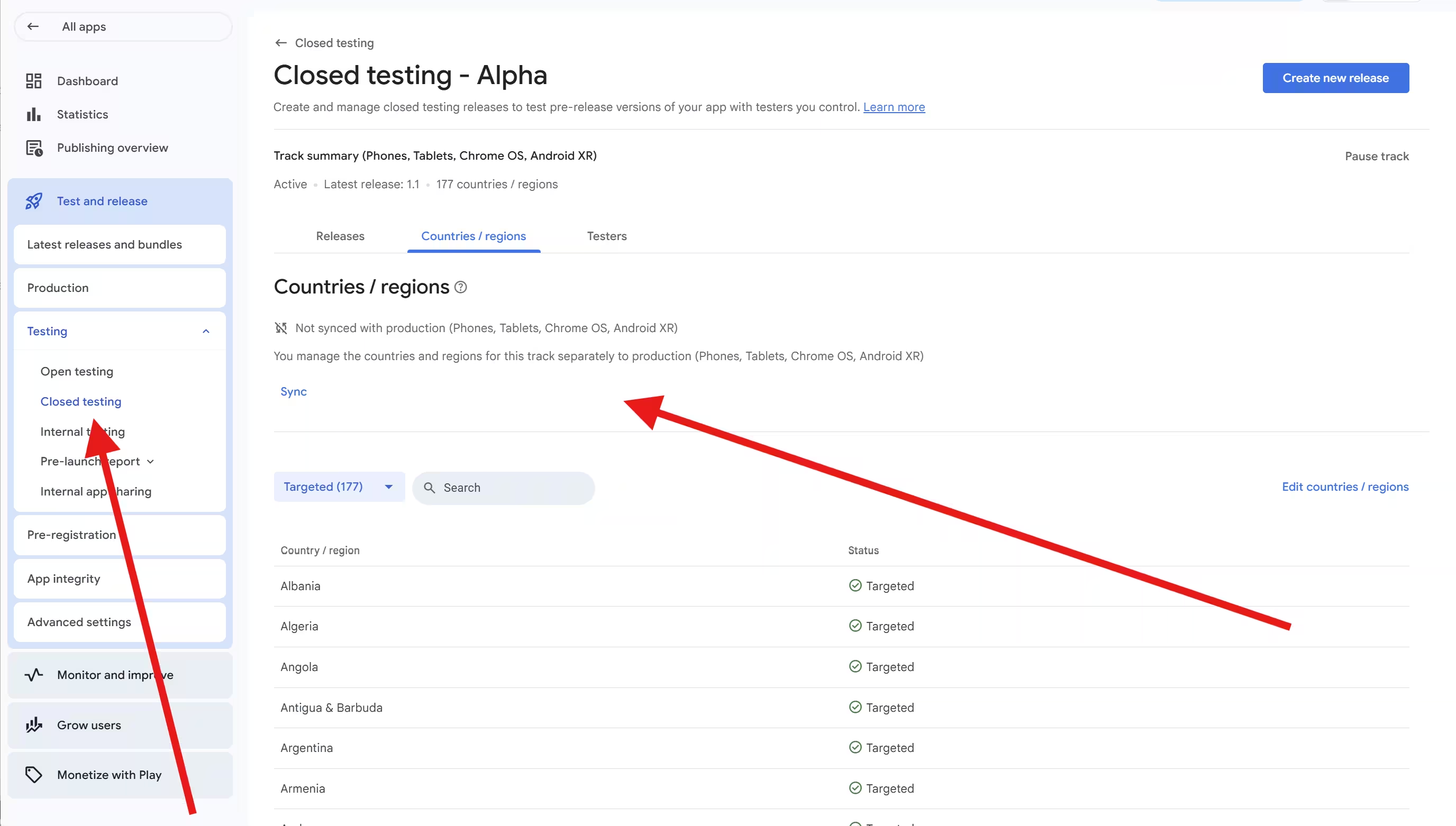
Open the countries tab Countries/regions
Select the Countries/regions tab. If the track is inheriting production settings, click Unsync countries/regions first (see the sync note below).
Add all countries Add countries/regions
Click Add countries/regions or Edit countries, then tick the master checkbox at the top to select all countries/regions. Make sure the "Rest of the world" option is included, then Save.
Send for review Publishing overview
Go to Publishing overview and click Send changes for review. This is the step developers most often forget - saving alone does nothing until you publish the change.
Two behaviors of this screen cause most of the confusion, and both are about the link between your test track and production:
Out of the box, your test track's countries are tied to production availability. Change one and you change the other. That is why limiting production to a few countries can quietly block testers elsewhere.
Click Unsync countries/regions, then Edit countries. Now the closed test has its own country list, separate from production, so you can open all 177 for testing without touching your launch plan.
Heads up on the opt-in link: the link your testers use looks like https://play.google.com/apps/testing/your.package.name. If you accidentally copy a link containing /internaltest/, you are sending testers to the internal track, which ignores these country settings but does not count toward the 14-day requirement. Saving country changes is also not the same as publishing them - selections sit in a pending draft until you click Send changes for review.
Interactive: The Tester Error Diagnoser
When a tester clicks your opt-in link and something goes wrong, the exact message they see tells you which fix you need. Pick what your tester is seeing below and the diagnoser shows the most likely cause and the precise steps to clear it. It runs entirely in your browser.
Select your tester's symptom
Guidance based on Google's published Play Console behavior plus widely reported developer fixes. Always click Send changes for review after any country edit.
The reason this diagnoser leads with the on-screen message is that the two most common errors point in completely different directions. "This item is not available in your country" means Google recognizes the request but is geo-blocking it, so the fix is country availability. "Item not found" or "you do not have permission to access the requested item" means the Play Store cannot locate the app for that user at all, which is almost always a wrong-account sign-in or propagation lag - our full breakdown of the app-not-available error covers every variation. Treating the second like the first is why so many developers keep editing countries when the real problem is the account on the device.
Why Is Selecting All 177 Countries the Safest Option?
Selecting all 177 countries/regions is the safest closed testing configuration. Google Play supports 177 individually listed countries/regions for distribution to users, plus a separate "Rest of the world" bucket. When you target all of them on your closed test, no tester is ever blocked by geography, no matter which country their Google account is registered in.
The reason developers hesitate is a misunderstanding: they think selecting all countries for the closed test will somehow expose their app worldwide at launch. It will not. Once you unsync the track, the closed-test country list and the production country list are two entirely separate data structures:
- Set to all 177 + Rest of the world
- Invite-only, never in public search
- Only your testers can install
- Whatever you choose at launch
- Can be one country or many
- Unaffected by your test list
So the recommended approach is simple: unsync the track, target all 177 countries/regions plus "Rest of the world" for closed testing, complete your 14-day requirement without any tester being blocked, and then choose whatever production country list you actually want when you launch. Adding a country to a closed test does not publish your app to the public there.
Small selector quirk
You may occasionally see 176 instead of 177 in the list if a region like the United States was segmented out by a prior pre-registration or staged rollout. If so, just re-add it so the count is complete. The goal is the master checkbox fully ticked, with nothing left unselected.
Why Can't I Just Ask Testers to Change Their Country?
Because they usually cannot, at least not quickly, and asking them to is a far bigger imposition than it sounds. The burden of fixing geography sits with the developer, not the tester, which is exactly why opening all countries on the track is the clean solution.
What you are actually asking a tester to do
- A user can only change their Google Play country once every 12 months.
- The change requires adding a valid payment method registered in the new country.
- It can lock them out of their own region's content and apps for a full year.
- For a two-week test, that is an unreasonable and largely irreversible request.
Switching an entire Play profile to your country, just to join a 14-day test, is not something most testers will or should do. Open the countries on your track instead - it takes you a few minutes and costs your testers nothing.
What if Testers Still Get Errors After You Open All Countries?
Once the track targets all 177 countries and the change is approved, geography is no longer the blocker. Remaining errors are almost always user-side or propagation-related. Here are the four fixes that resolve the large majority of these cases:
The tester accepts the invite in their browser with the invited account, but the native Play Store app is signed in to a different, uninvited account. Fix: in the Play Store app, tap the profile icon and switch to the exact email that was authorized for the test.
Google states that after publishing a test for the first time it may take a few hours for the link to work, and later changes can also take several hours to reach testers. Fix: wait and retry. Treat brand-new apps appearing slowly across regions as a "wait a bit longer" signal, not a documented guarantee.
If a tester clicked the link before your setup was finished, their device may have cached the failure. Fix: Settings > Apps > Google Play Store > Storage & cache > Clear cache, force close the app, then reopen the opt-in link.
A corporate Google Workspace account or company device with Managed Google Play enabled makes the app a private enterprise app invisible to normal accounts. Fix: have them use a personal account, or add the relevant Organization ID to the track.
Read the message, then pick the fix
"This item is not available in your country" is a geo-block (a country fix). "Item not found" or "you do not have permission to access the requested item" is a 404-style miss (an account or propagation fix). They look similar in a tester's screenshot but need opposite responses.
Does the Opt-in Link Bypass Country Restrictions?
A common assumption is that a direct opt-in link or an email-list invitation bypasses country restrictions. For closed testing, it does not. The two things control completely different parts of access:
"If I send the tester the direct opt-in link, they can install from anywhere."
The link invites them, but Google Play still checks app availability by country before allowing the install. The invitation alone does not unlock the download.
The link and the country setting are two separate gates, and a tester must pass both.
Even with the correct link and the right Google account, the install is blocked if the app is not available in their Play country on that track.
It helps to picture the two gates from earlier as two different keys. One key is who you let in; the other is where the app is allowed to go:
The one exception is internal testing, where country targeting does not apply and testers from any location can install. But internal testing does not count toward the 12-tester, 14-day production requirement, so it is not a workaround for closed testing. We will compare all three tracks shortly.
How Do the Testers List and Country Targeting Interact?
It helps to think of closed testing access as two independent layers. A tester must satisfy both - adding an email is meaningless if the country is blocked, and opening all countries is meaningless if the tester is not on the list.
The testers list - who is invited
You add testers by individual email list or by Google Group. Only people on the list or in the group can join the closed test.
Countries/regions - where the app is available
Even an invited tester can only install if the app is available in their Play country on that track. Select all 177 so this layer never blocks anyone.
Two practical traps live in the first layer, and both quietly cost developers their testers:
Uploading a CSV overwrites the list, it does not append. If you upload a new CSV of emails, it replaces the existing addresses on that list rather than adding to them. Edit the existing list carefully instead of re-uploading and wiping your current testers.
Creating a list is not the same as attaching it. After creating a list, you must tick its checkbox on the track page and save, or the testers on it stay unauthorized and will be blocked even with all countries open.
For international testers, use a Google Group. You enter one group email into the console, then adding or removing members in the Google Groups interface instantly grants or revokes access without touching Play Console again. The cleanest setup is: add your testers (or PrimeTestLab's Google Group), select all 177 countries, and send for review.
What if Your App Is Paid or Has In-App Purchases?
Country availability is the only download gate for a free app. But if your app has an upfront price or in-app purchases, there is a second layer: Google Play requires prices to be defined for each country where a paid app is available, and testers in a region with no defined pricing can hit transactional errors.
Use License Testing for purchase flows Setup > License testing
To test purchases without real charges and without standing up full localized pricing, add your testers' emails or Google Group as license testers. They receive sandbox billing responses, so they can exercise paid features and subscription logic without real money or region-specific banking errors.
Important clarification
License Testing handles the billing sandbox, not country availability. Your testers still need their country targeted on the track to download the app in the first place. License Testing simply removes the real-payment and localized-pricing hurdle on top of that - it does not bypass the country gate.
How Does Geography Differ Across Internal, Closed, and Open Testing?
The platform has three testing tracks, and they treat geography very differently. This is a frequent source of confusion, because internal testing ignores geography entirely and lulls developers into thinking country settings never matter.
Transition trap
A tester already opted into your internal test may need to leave it before they can join the closed test for the same app, otherwise the closed link can return an "App not available" or "Item not found" error. If you are moving people from internal to closed, have them opt out of internal first. This is community-reported behavior rather than documented policy, but it comes up often.
Do the 2025-2026 Testing Requirements Affect Geography?
The geography mechanics above are unchanged by recent policy updates. But the requirement that makes them matter is worth restating, because it is the reason most developers end up with international testers in the first place.
The closed testing requirement, at a glance
If you have a personal Google Play developer account created after November 13, 2023, you must run a closed test with at least 12 opted-in testers for at least the last 14 days continuously before you can apply for production access. Google reduced this from 20 testers to 12 on December 11, 2024, but the 14-day continuous window is unchanged. If your active tester pool drops below 12, the clock is disrupted and you may have to restart a full 14-day cycle.
Organization accounts are fully exempt from the 12-tester, 14-day requirement. This rule applies only to personal developer accounts created after the November 13, 2023 cutoff. If you are weighing account types, see Personal vs Organization Google Play Account.
This is exactly where geography becomes a real obstacle. To find 12 committed testers, most developers recruit beyond their own country, which means international testers, which means country availability has to be open or those testers get blocked and the 14-day clock never starts. The fix is the same one this whole guide has been building toward: open all 177 countries on the track.
How PrimeTestLab Handles the Country Problem for You
PrimeTestLab provides real-device, opted-in testers across 120+ countries and walks you through the Play Console setup so that geography never blocks your test. Because our testers are international, selecting all 177 countries is part of the standard setup we recommend before your link goes live. See our full Google Play closed testing service for what is included. We maintain a 99.9% success rate across 9,800+ apps, and testing typically starts within 4-6 hours.
Many developers choose more than the 12-tester minimum so a single inactive tester or a one-off device error cannot stall a full 14-day cycle. Whichever plan you pick, the country setup is handled the same way: real accounts in real countries, with all 177 targeted so nobody hits the "not available in your country" wall.
Frequently Asked Questions
Can testers in different countries join the same Google Play closed test?
Yes. A single closed test can include testers from many countries at once. You just need your app to be available in each tester's Play country on that closed testing track. Selecting all 177 countries/regions guarantees no tester is blocked by geography.
Why does my tester see "This item is not available in your country"?
Because their Play country is not selected on the closed testing track, the change has not been sent for review, or it has not finished propagating. Add their country, or all countries, in Testing > Closed testing > Manage track > Countries/regions, save, and click Send changes for review. If countries are already open, check that the tester's Play Store app is signed in to the invited account.
How do I update countries in closed testing?
Go to Testing > Closed testing, click Manage track, open the Countries/regions tab, unsync from production if needed, click Edit countries or Add countries/regions, select all 177 countries/regions plus "Rest of the world," save, then send the change for review on the Publishing overview page.
Does adding a country to my closed test publish my app to the public there?
No. Closed-test country settings are separate and independent from production availability. The closed test is invite-only and never appears in public Play Store search, so opening all countries for testing does not expose your app to the public anywhere.
Why does my tester still get an error after I added their country?
The most common reason is an account mismatch: their browser is logged into the invited account, but the native Play Store app is signed into a different account. Have them switch accounts in the Play Store app. Stuck "item not found" errors are usually propagation lag or a cached result, fixed by waiting a few hours or clearing the Play Store app cache.
Does the opt-in link bypass country restrictions?
No. The opt-in link and email or Google Group list control who is invited; the Countries/regions tab controls where the app is available. A tester must pass both gates. Only internal testing ignores country targeting, and it does not count toward the 12-tester requirement.
My app is paid or has in-app purchases. Is geography different?
You still need each tester's country targeted to download. On top of that, paid apps need pricing defined per country, and to test purchases without real charges you should add testers under Setup > License testing for sandbox billing responses. License testing handles the billing sandbox, not country availability.
Do organization accounts need to worry about the 12-tester country setup?
Organization accounts are exempt from the 12-tester, 14-day requirement entirely. The requirement applies only to personal developer accounts created after November 13, 2023. They can still use country targeting, but they are not forced to run the closed test.
Bottom Line
Summary
Testers can absolutely be in different countries for a single Google Play closed test - geography is not a barrier as long as your app is available in each tester's Play country on the closed testing track. The "This item is not available in your country" error is a country-availability misconfiguration, not a tester problem, and the safest fix is to unsync the track, select all 177 countries/regions under Testing then Closed testing then Manage track then Countries/regions, then send the change for review. Closed-test country settings are completely separate from production availability, so opening all countries for testing never exposes your app to the public. If coordinating international testers sounds like more than you want to manage, PrimeTestLab provides real-device testers across 120+ countries from $19.99. See pricing plans →