














Why a Google Group adds a second gate
- You do this Invited Added to the group
- Gate 1 Joined A real member, not pending
- Gate 2 Opted in Same Google account
- Pass Installed App finally appears
"App not available" almost always appears when a tester clears the invite but stalls at Gate 1 (still in Pending members) or Gate 2 (wrong account). The opt-in link is rarely the real fault.
Quick Answer
"App not available" during a Google Group closed test usually means one of three things: the tester has not truly joined the group (an invitation is not the same as membership), they are using a different Google account than the one you authorized, or they reached the app before it finished publishing. Fix it in this order: confirm the track is Published and any changes were sent for review, verify the group uses the yourgroupname@googlegroups.com format and is selected for this track, confirm each tester shows under Members and not Pending, match the Google account across the group / opt-in link / Play Store, then check internal-test enrollment, country, and device before clearing any caches. The one part a settings fix cannot solve - finding 12 engaged testers for 14 continuous days - is what PrimeTestLab handles for you.
With a plain email list, Play Console is the only permission gate: you add tester emails, share the link, and each person opts in. A Google Group inserts a second gate in front of that. Before the Play opt-in page will authorize anyone, that person must already be a current member of the group attached to the track. Miss that first gate and Play behaves as if the tester was never invited at all. This guide walks every cause in the order you should check it, quotes Google's own wording where it matters, and is current as of July 2, 2026. The closed test itself is just one step in the full 2026 Google Play publishing requirements.
Who this applies to: the 12-tester, 14-day closed test that this opt-in flow feeds is required for new personal Google Play developer accounts created after November 13, 2023. Organization accounts have more flexibility - here is the full personal vs organization account breakdown. Either way, the group-membership and account fixes below are identical.
Quick win: the fixes that solve most cases
- 1Make each tester a real Member - check the group's Members list, not Pending. An invitation that has not been accepted does not count.
- 2Use one Google account everywhere - the same account must join the group, click the opt-in link, and install from the Play Store.
- 3Confirm the app is Published - and that you clicked "Send changes for review," then allow a few hours after a first publish for the link to go live.
Rule of thumb: one tester failing points to their account or membership; every tester failing points to your Play Console setup.
Table of Contents
Why Does a Google Group Closed Test Show "App Not Available"?
Because a Google Group adds a second permission gate that an email list does not have. Before Play will authorize a tester, that person must already be a current member of the group attached to the track. If they are not a member yet, or they are using a different account, Play behaves as if they were never invited - and shows "App not available."
With a plain email list, Play Console is the only gatekeeper. You add tester email addresses in Play, share the link, and each person opts in. A Google Group inserts a gate in front of that. Google's Play Console Help is explicit about the order:
Only users who are members of the Google Group you enter can join the test... testers need to join the group before they opt in.
Miss that first gate and the error screen even names its own two most common causes. It tells testers to make sure they are signed in to the account that was invited, and, if they were invited through a Google Group, to make sure they have actually joined that group. So before you touch the link, Google is quietly pointing at the two failures this guide tackles first.
Google's error screen already tells you where to look
Cause 1Wrong account. "Make sure you're signed in to the account that was invited to the program."
Cause 2Not a member. "If you were invited through a Google Group... make sure you've joined that group."
One more thing worth knowing up front: some testers see a slightly different message - "Item not found" - instead of "App not available." It comes from the same two causes (they are not a real group member yet, or they are on the wrong Google account), so every fix in this guide applies to both errors.
Why "Invited" Is Not the Same as "Member"
This is the single biggest reason developers search for why closed testing opt-in is not working. An invitation and a membership are two different states, and Play only recognizes real, current members. A tester who was invited can sit in "Pending members" for days while Play evaluates them as an outsider.
In Google Groups, the owner controls how people join, and each setting changes what "invited" actually means. Use the decoder below to see whether a given setting makes your tester a real member or leaves them stuck pending.
Interactive
"Invited vs Member" Decoder
Pick how your Google Group handles new people. See if the tester is really a member.
Real member right away
Play will authorizeA directly added person becomes a true member immediately, so Play lets them opt in. One quirk: Google notes that directly added members are added even if their names do not appear in the member list immediately, so the list can lag reality for a short time. If the tester still fails, the problem is the account, not the membership.
Pending until they accept
Play blocks themGoogle sends an invitation the tester has to accept. Until they open it and accept, they sit in Pending members and are not members yet, so Play blocks them. Tell testers to check their inbox (and spam) for the group invite and accept it before touching the opt-in link.
Pending until an owner approves
Play blocks themAsk-to-join requests land in Pending members until an owner or manager approves them. If nobody approves the queue, testers stay non-members forever and every opt-in fails. Approve the pending list, then confirm each name moved into Members.
You cannot direct-add them
Invitation onlyIf a user turned off the option that lets managers add them to groups without permission, direct-add silently fails for that person. Only an invitation works, and they still have to accept it. This is why a batch direct-add can look like it worked while one or two testers never actually joined.
The practical result is that a tester can genuinely believe they joined while Play still evaluates them as an outsider - which is exactly how you end up adding 12 testers but seeing 0 opted in. So before you share the opt-in link, open the group and confirm each tester appears under Members, not under Pending members.
Pro tip
The fastest way to end the "invited vs member" confusion is to skip invitations entirely: turn on Directly add members before you add anyone. Direct-added testers are members instantly, so there is no pending queue and no acceptance step for them to forget.
Why Doesn't the Opt-In Link Work Right After I Publish?
Because two separate delays stack on top of each other, and testing 30 seconds after setup produces misleading "not available" results even when everything is configured correctly. The opt-in link only appears once the app is Published, and after a first publish it can take a few hours to go live.
Timing fools a lot of developers into thinking the setup is broken when it is only slow. Google documents two rules here:
The opt-in URL won't work until your app is published... After you publish your app for the first time, it can take a few hours for the testing link to work.
It helps to keep the two delays apart. One lives inside Google Groups; the other lives inside Play distribution. Both systems are "eventually consistent," so a tester who tries too early gets a false failure:
Delay 1 - Group membership activation
Minutes to hoursInvitations have to be accepted, ask-to-join requests have to be approved, and even direct-added members can lag the visible member list for a short time. Until membership settles, Play sees the tester as a non-member.
Delay 2 - Play distribution
HoursAfter a first publish the release and its link take a few hours to propagate, and later changes to your tester list, countries, or release can take several hours to reach testers. The link can look dead in the meantime.
Two more timing traps belong in this bucket. First, testers cannot find a closed test by searching Google Play before your app is more widely available, so you have to share the Play Store URL and the opt-in link directly. Second, changes to your tester list, countries, or release stay pending until you submit them:
Easy to miss
If you edited your testers, countries, or release and did not click Send changes for review in the Publishing overview, Play keeps serving the old configuration. Your latest fix simply is not live yet. Always check the Publishing overview for a pending-changes banner before you blame the setup.
Which Google Account Should Each Tester Use?
Exactly one: the same Google account must be used to join the group, to click the opt-in link, and to install from the Play Store. A Google Group invitation is tied to one specific email address, and the Play Store install is account-bound in the same way. Mix accounts across those three steps and Play returns "App not available."
Account mismatch is the second cause Google's error screen calls out, and it is easy to trip over. The problem gets worse on phones with several Google accounts signed in at once: one account may have joined the group, another may be active in the browser where the tester clicked the link, and a third may be the account the Play Store is using to install. From your side it looks random. From Google's side it is a straightforward permission mismatch.
Joined the group
The account the invite was sent to
Clicked opt-in
The account active in the browser
Installs on Play
The account the Play Store uses
All three must be the same account. If any one differs, Play treats the tester as unauthorized - even if the other two are perfect.
Interactive
Account Consistency Checker
Set which account the tester used at each step. See instantly whether Play will authorize them.
The fix is simple to state and easy to forget under pressure: pick one account, and make it identical across all three steps - the group invitation, the opt-in click, and the Play Store download. Aliases and second accounts the tester owns do not count; the invitation is bound to the exact address you entered. It is the same reason you cannot quietly be your own tester across a handful of extra accounts.
Could Country, Device, or a Previous Internal Test Be Blocking Testers?
Yes. Some "App not available" cases have nothing to do with the group at all. Three settings can block a perfectly valid, fully joined tester: country targeting, device compatibility, and a leftover internal-test enrollment. Rule these out once membership and account are confirmed.
Country targeting
Closed testing has its own Countries and regions tab. Targeting is based on the user's Play account country (where the account is registered), not where the phone currently is.
Device compatibility
Google marks a device Unsupported when your manifest requires a feature the device lacks. A <uses-feature android:required="true"> element does this directly.
ACCESS_FINE_LOCATION implies GPS hardware and can filter out devices that lack it. Excluded or unsupported devices cannot install - and emulators often fail too.Internal-test conflict
A user opted in to your internal test is not eligible for a closed test until they first opt out of internal, then opt in to the new track.
Quick test: if a tester worked fine on your internal track but fails on closed testing, suspect country targeting or leftover internal enrollment first - those are the two differences between the tracks, and both are invisible until you look.
Do You Need a Special Google Group Address?
Use a standard consumer yourgroupname@googlegroups.com group. Google's setup instructions specify that format, and developers repeatedly report that Workspace custom-domain group addresses are not recognized or behave inconsistently in the closed-testing field.
yourgroupname@googlegroups.com
The standard consumer Google Groups address, and the exact format Google's documentation specifies for the closed-testing field. Create the group at groups.google.com and it gets this address automatically.
testers@yourcompany.com
A Workspace custom-domain group. Developers on Google's own Play Developer Community forum repeatedly report these are not recognized or behave inconsistently in the closed-testing field, even when they work fine for email.
Google's documentation only specifies the @googlegroups.com format and does not spell out a formal ban on Workspace addresses, so treat this as a practical warning rather than official policy. The safest choice is to create a fresh @googlegroups.com group for the test instead of reusing a Workspace group that happens to work fine for email. It costs you two minutes and removes an entire class of "the address just would not take" failures.
How to Set Up a Google Group Closed Test (From Scratch)
Just paid the $25 fee and starting fresh? Do these eight steps in order and you sidestep almost every "App not available" cause above. The two that matter most: turn on Directly add members so nobody sits in Pending, and click Send changes for review so Play actually serves your setup.
A Google Group is worth using when you want testers to manage their own membership, or when you expect the tester list to change often. If you just need a fixed set of 12 to 25 people, an email list is simpler. If you are going with a group, here is the clean, start-to-finish setup - tick each step off as you go.
Google Group vs email list vs paid testers
Not sure a Google Group is even the right choice? Here is how the three ways to supply closed-testing testers compare:
| What matters | Google Group | Email List | Paid Testers |
|---|---|---|---|
| Setup effort | Medium (2 gates) | Low (1 gate) | Lowest |
| Membership gate | Yes - join first | None | None |
| Wrong-account risk | High | Medium | None |
| You recruit testers? | Yes | Yes | No |
| Best for | Self-managed, changing lists | A fixed set of 12 to 25 | Fast, guaranteed 14 days |
Interactive setup checklist
Here is what step 5 looks like in practice - the Google Group added on the closed testing track's Testers tab. Once the group appears here, its members can opt in using that same Google account.
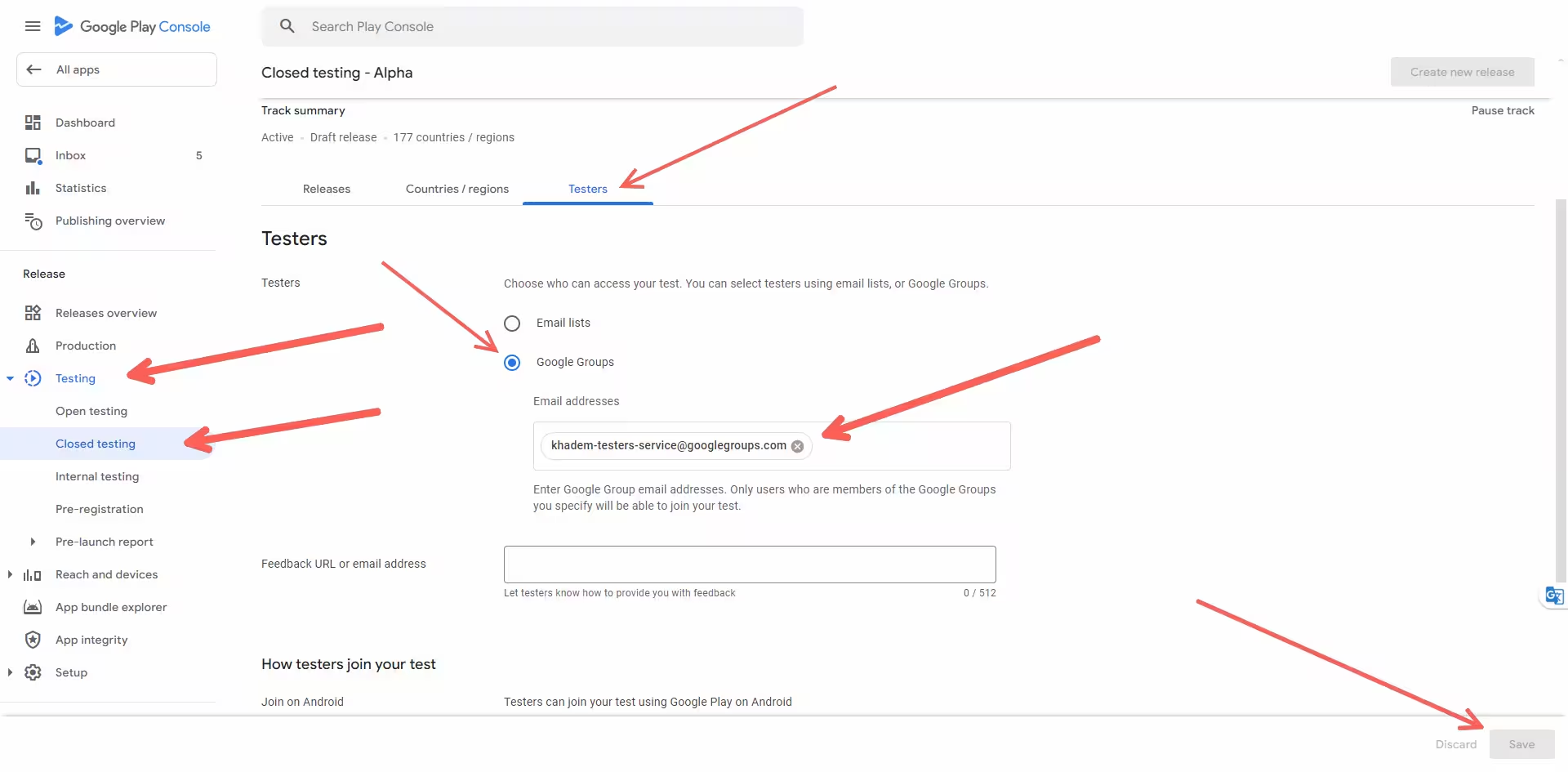 Click to enlarge
What happens after setup: once testers are opted in, the requirement is 12 testers active for 14 continuous days before you can apply for production. If you would rather not recruit and babysit that list, see how to invite testers and the 12 testers requirement.
How to Fix Google Group Closed Testing, Step by Step
Work the seven steps below in order - most stalled tests are solved by the time you finish step four. Not sure where to start? Run the diagnoser first: it reads your symptom and how many testers are affected, then points you at the exact cause.
Interactive diagnoser
Google Group Opt-In Diagnoser
Answer two questions. Get the single most likely cause and where to fix it.
The 10-second fault localizer
Before you touch anything, count how many testers are failing. It tells you which half of this guide to read:
The cause is on their side
If one tester fails while others succeed, it is almost always account or membership. Check that person under Members (not Pending) and confirm they used the invited account across all three steps. Everything in Invited vs Member and Which Account applies.
The cause is your configuration
If every tester fails, it is almost always your Play Console setup: the track state, an unselected list, the wrong link, country targeting, or a review still pending. Start at step 1 below - do not blame the testers.
The fix, in order
Confirm the track is Published with nothing pending
If changes are still pending, open the Publishing overview and click Send changes for review, then allow a few hours after a first publish for the link to go live.
Verify the tester method and group address
If you use a Google Group, confirm the address is in yourgroupname@googlegroups.com format and that the correct group is selected for this closed track, not a different track. Confirm the opt-in link contains play.google.com/apps/testing/ and is not an internal-test URL.
Confirm each tester is an actual group member
Check the group's Members list, not Pending members. An invitation that has not been accepted does not count. This step alone resolves most one-tester failures.
Make the account identity consistent
Use the same Google account for the group invitation, the opt-in click, and the Play Store install, and watch for multiple signed-in accounts on the device.
Check internal-test enrollment
If the tester is opted in to an internal test, have them opt out of it first, then opt in to the closed test.
Check country and device eligibility
Confirm the tester's Play account country is targeted and their device is supported rather than excluded or unsupported.
Clear caches only as a last resort
Clearing the Play Store cache or data, or the browser cache, sometimes helps - but only after everything above is verified.
30-second smoke test
Open the opt-in link on a device signed in to a spare, non-developer account that you have added to the group and the tester list. If the opt-in page loads for that account, the test is genuinely live and your configuration is fine - which means any remaining failures are on the individual tester's account or membership.
How PrimeTestLab Handles Closed Testing for You
Fixing the technical causes above gets your opt-in flow working. It does not solve the harder problem underneath: Google requires a minimum of 12 testers opted in for at least the last 14 days continuously before a new personal developer account can apply for production access. That requirement, reduced from 20 to 12 testers on December 11, 2024, applies to personal accounts created after November 13, 2023 - and every tester who never truly joins, opts in with the wrong account, or drops out mid-cycle chips away at that continuous 14-day window.
That is where PrimeTestLab comes in. We provide real, opted-in testers on real Android devices across 120+ countries, so you are not chasing friends and coworkers through the membership and account problems above. Testing starts within 4-6 hours, with a 99.9% success rate across 9,800+ apps and a 4.9 out of 5 rating from 2,200+ reviews.
Doing it yourself vs a managed test
| What it takes | DIY with a Google Group | Managed (PrimeTestLab) |
|---|---|---|
| Real, opted-in members | You chase invites | 12+ opted in for you |
| Wrong-account failures | Common risk | Handled for you |
| 14 continuous days | Breaks on dropouts | Kept active |
| Time to first tester | Days of recruiting | 4-6 hours |
| Reach | Whoever you know | 120+ countries |
Current Packages
- Meets Google's minimum
- Real Android devices
- Full 14-day coverage
- Buffer absorbs dropouts
- Best device diversity
- Strongest first-attempt rate
- Safety buffer included
- Better device diversity
- Higher approval confidence
Compare the plans on our pricing page, see the process on how it works, read more about meeting the 12 testers requirement, or start with the closed testing service. Testers are opted in for you and kept engaged for the full window, which is the part of the requirement a Play Console fix cannot handle.
Frequently Asked Questions
How do I set up a Google Group for Google Play closed testing?
Create a group at groups.google.com (it gets a yourgroupname@googlegroups.com address), turn on Directly add members so testers join instantly, then add your testers. In Play Console, open Closed testing, choose Google Groups on the Testers tab and paste the group address, upload a release, publish, and click Send changes for review. Finally share the opt-in link, which each tester opens with the same Google account that is in the group.
Why does my tester see App not available even though I added them to the group?
Adding is not always joining. If your group requires invitations, the tester stays in Pending members until they accept, and Google Play treats pending users as non-members. The other common cause is account mismatch: the tester joined or is browsing with a different Google account than the one on their Play Store. Confirm they appear under Members and are signed in to the exact invited account.
Do testers have to join the Google Group before opting in?
Yes. Google's Play Console Help states that for a closed test run through a Google Group, users need to join the group before they opt in. Group membership is a prerequisite gate in front of the Play opt-in, so the correct instruction to testers is always two steps: first join the group, then open the opt-in link and become a tester using that same account.
Can I use a Workspace custom-domain Google Group for closed testing?
It is safer not to. Google's instructions specify the yourgroupname@googlegroups.com format, and developers frequently report that Workspace custom-domain group addresses are not recognized in the closed-testing field. Google does not publish a formal ban, so treat it as a practical warning. Create a standard consumer @googlegroups.com group for the test to avoid an address that Play may quietly reject.
How long after publishing does the opt-in link start working?
The link only appears once the app is Published, not while it is in Draft or Pending publication. After a first publish, Google says the link can take a few hours to become available, and later changes can take several hours to reach testers. If you just published, wait a few hours and confirm no changes are still pending review before assuming the setup is broken.
Does a failed opt-in affect my 14-day requirement?
Yes, indirectly. A tester who never truly opts in does not count toward the 12 opted-in testers Google requires. If active opt-ins drop below 12 at any point, the continuous 14-day window is at risk, since the 14 days must be consecutive. This is why membership and account problems can quietly delay your production access. This 12-tester, 14-day rule applies to new personal accounts created after November 13, 2023; organization accounts have more flexibility.
Does Google check actual app usage or just opt-in status?
The hard, documented requirement is opt-in status: at least 12 testers opted in for the last 14 continuous days, which is what the closed testing dashboard tracks. In practice, some developers report rejections tied to very low engagement, so it is worth having testers actually open and use the app and leave feedback during the window, not just opt in and go quiet.
Is an email list easier than a Google Group for closed testing?
For a fixed set of roughly 12 to 25 testers, usually yes. An email list removes the membership gate entirely: you add addresses directly in Play Console, and testers only need to opt in. A Google Group is useful when you want testers to manage their own membership, but it adds a second point of failure and the Workspace-address issue. Testers still have to opt in either way.
Can PrimeTestLab handle the 12 testers for me?
Yes. PrimeTestLab provides real, opted-in testers on real Android devices who stay active for the full 14 continuous days, so you skip the group-membership and wrong-account problems entirely. Pricing starts at $19.99 for 12 testers, testing typically begins within 4-6 hours, and we maintain a 99.9% success rate across 9,800+ apps.
Bottom Line
Summary
When a Google Group closed test will not work, do not start with the opt-in link. Start by confirming the tester is a real member of the correct group (not stuck in Pending), signed in to the exact invited account, on a test that is actually published and live - then work down through country, device, and internal-test settings. One tester failing points to their account or membership; every tester failing points to your configuration. Fix those in order and most "App not available" errors disappear. And if the only thing between you and production is finding 12 engaged testers for 14 continuous days, that recruitment problem is exactly what PrimeTestLab is built to solve. See pricing plans →