














Quick Answer
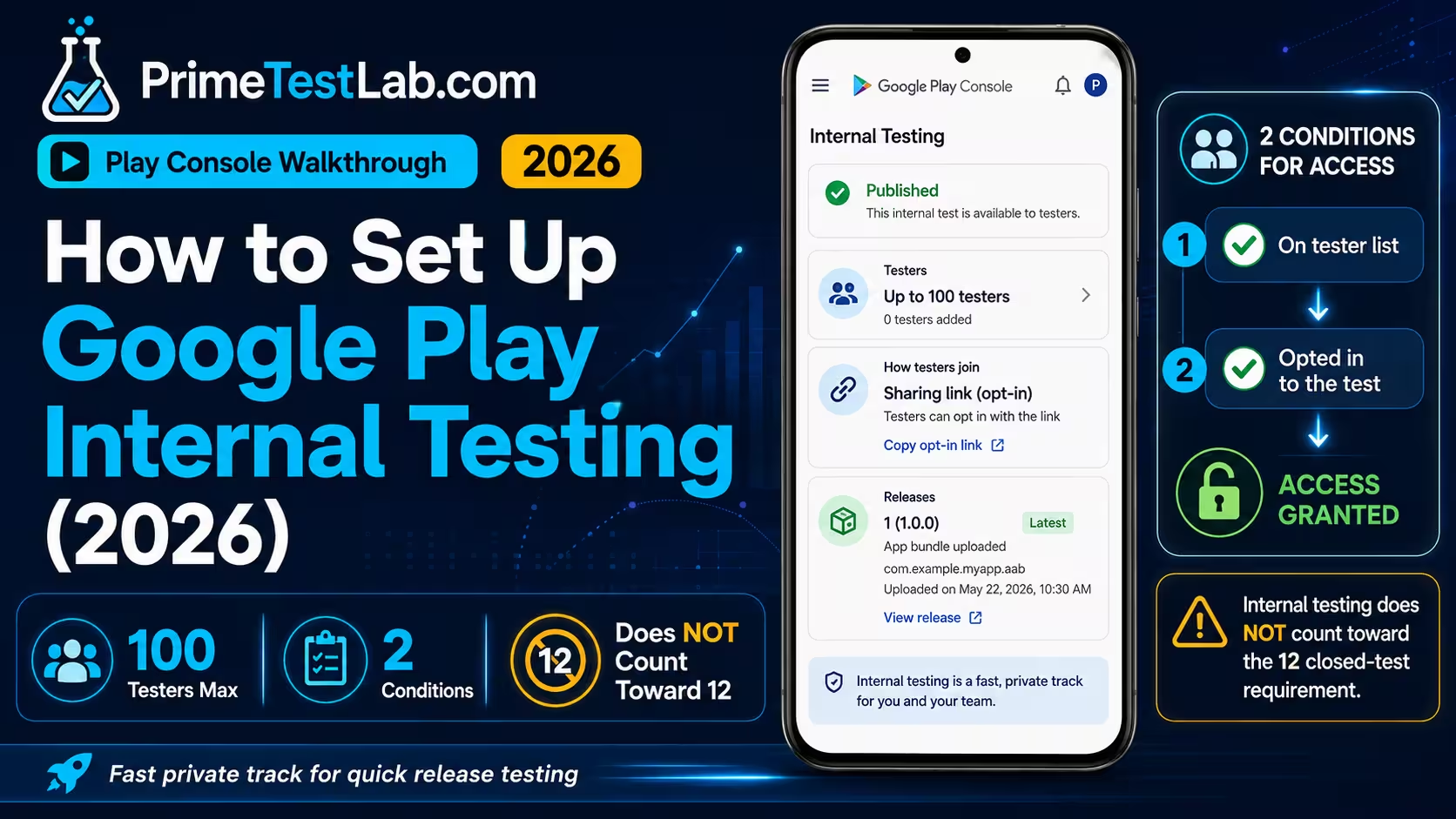
Set up Google Play internal testing at Test and release › Testing › Internal testing: create or select a tester email list, create a release and add your app bundle, roll it out, then copy and share the tester opt-in link. Google allows up to 100 internal testers per app, and you can start before the app is fully configured. A tester only becomes eligible once they are both on the configured list and opted into the test: adding an email address makes that account eligible for the track, but it does not grant access on its own. Internal testing is optional, and it does not count toward Google's production-access requirement: that one specifically calls for a closed test with at least 12 testers opted in continuously for 14 days. Internal testing is useful for fast private QA, but the production-access requirement is satisfied on the closed-testing track and nowhere else.
Internal testing is the one Play Console track that behaves the way developers expect software to behave: you upload a build, it appears, people install it. Right up until it does not. Then you are staring at a link that loads a Play Store page saying the app is not available for your account, with no error code, no diagnostic, and a Help article that mixes three testing tracks together across several hundred lines. This post separates the internal track from the other two, gives you the console path and the tester-list rules in the order you actually need them, and then spends real time on the failure family that fills the support threads. Where Google's own pages disagree with each other, and on timing they clearly do, both readings are shown rather than the convenient one. Everything here is current as of August 12, 2026.
Table of contents
How do you set up internal testing?
Short answer
Go to Test and release › Testing › Internal testing, build a tester email list, add it to the track with a feedback address, create a release from a valid app bundle, roll it out, then copy the tester link and send it out yourself. Six steps, and the last one is not yours to do: each tester has to opt in. The whole thing can be done before your store listing is finished.
Before you start
Prepare the app, the build, the tester accounts and your own Play Console access. Notice what is not required: a finished store listing, screenshots, a content rating, or a completed data safety form. Google explicitly allows an internal test to run before the app is fully configured. Verified
-
01
An app that exists in Play Console Created, not necessarily filled in. The first artifact you upload fixes the package name for that app and it cannot be changed afterwards, so make sure the applicationId is the one you intend to keep.
-
02
A valid app bundle Google's wording is a "valid app bundle". That is the only artifact requirement for getting an early internal build into testers' hands.
-
03
Tester email addresses Google Accounts. Current Help specifies a Google Account using Gmail, or a Google Workspace account. Collect the exact address each person will be signed in as, because that is the identity the whole track is keyed to.
-
04
The Play Console access to do it Owners and admins already have it. A delegated user needs permission to release apps to testing tracks, and managing the track and its tester lists can need the separate permission to manage testing tracks and edit tester lists. A missing or greyed-out release button is an access problem, not a build problem.
-
05
Play App Signing, on the first release only For an app's first release, Play Console takes you through configuring Play App Signing. It is a one-time step you will meet during the upload rather than something to arrange in advance, but it is worth knowing it is coming before you start.
Step 1: open the internal testing track
Select your app, then go to Test and release › Testing › Internal testing. Google documents this path two different ways. The Play Console Help article on setting up a test abbreviates it to Testing › Internal testing, while another current Help page exposes the full parent menu. Both describe the same destination, so if your console shows a shorter menu than the one written here, you are not in the wrong place.
The navigation is the most perishable thing on this page. Play Console menu groupings and button labels change without a policy announcement behind them. The full path above was checked against Google's live Help on August 12, 2026. Every rule in the rest of this post survives a menu rename; the click path is the part to verify in your own console.
Step 2: create your internal tester list
Open the Testers tab on the internal testing track and choose Create email list. Name the list, add the addresses, save the changes, then create the list. Addresses can be typed straight into the interface separated by commas, or uploaded as a CSV. The CSV route is where lists quietly get destroyed, because it carries three rules that are documented once and never repeated.
Three CSV rules that break tester lists
One address per line, with no commas. The comma-separated format belongs to the text field in the interface, not to the file. Uploading overwrites. A CSV upload replaces the addresses already in that list rather than adding to them, so a second upload containing only your new testers deletes the original ones. No UTF-8 with BOM. Play Console does not accept CSV files in that encoding, which is exactly what a spreadsheet produces when you pick "CSV UTF-8" on export. All three are stated in Play Console Help answer 9845334. Verified
Tester list linter
Tool 01
Paste your tester list and check it before Play Console does
Internal tester seats
0 of 100 used
Google caps internal testing at 100 testers per app.
This runs entirely in your browser. Nothing you paste is uploaded, stored or sent anywhere. It checks the documented Play Console constraints only, and cannot tell you whether an address is a real Google Account.
Step 3: add the list and a feedback channel
Back on the Testers tab, select the user list or lists you want this track to use, then give Google a feedback URL or email address. That destination is shown to testers on the opt-in page, which makes it the only built-in route for them to tell you something is broken.
The distinction the whole post rests on
Adding an address to a list controls eligibility. It is not the same as the tester joining. Google's rule is that an account has to be included in the track's tester configuration and have opted into that test program before it can receive builds. Two conditions, in series. A list full of correct addresses where nobody has opted in delivers exactly nothing. Verified
Step 4: create and roll out the release
Choose Create new release, add your app bundle, review it, and roll it out with the current console controls. Play Console variants differ enough in their exact button wording that memorising a click sequence beyond this is a liability rather than a help, so the instruction stops where Google's current documentation stops.
The one irreversible step
Uploading the first artifact fixes the package name for that Play app. Google's wording is that as soon as you upload an artifact the package name is fixed and cannot be changed. If you are still deciding between com.company.app and com.company.appname, decide before this upload, not after. Verified
Step 5: copy and share the opt-in link
Copy the shareable tester link and send it out. This is the step that has confused developers since at least 2018, and the confusion is entirely reasonable: every other invitation system on the internet sends an email, and Google's documented workflow hands you a link to distribute instead. Do not rely on Play Console to invite testers for you.
“Copy the shareable link”
Two conditions govern whether that link even exists yet. The opt-in link is displayed only when the app status is Published. While the app sits in Draft or Pending publication, there is nothing to copy, and no amount of re-reading the Testers tab produces one. Verified
Step 6: each tester opts in and installs
The last step belongs to the tester, and it is the one you cannot do for them. Each person opens your link while signed in as the exact account you added, completes the opt-in on that page, then follows the Play Store link and installs. Until that happens they are eligible but not enrolled, and eligible testers receive nothing. Send the link with the account name you invited written next to it, because opting in as the wrong identity is one of the most frequently reported failures in this flow and it looks exactly like a broken link.
Who does what
You do this
- Add the exact Google Account addresses to a list
- Select that list on the Testers tab
- Enter a feedback URL or email
- Create the release and roll it out
- Wait for the app status to reach Published
- Copy the tester link and send it to each person
- Tell them which account to be signed in as
Only they can do this
- Open your link while signed in as the invited account
- Complete the opt-in flow on that page
- Follow the Play Store link from the opt-in page
- Install from Google Play on that same account
- Stay opted in while you need them on the track
- Find the app by searching Play. That will not work
- Wait for an invitation email. Google's workflow does not include one
The whole sequence, in one table
| Stage | The 2026 action | What to watch for |
|---|---|---|
| Open the track | Select your app, then Test and release › Testing › Internal testing | Google's general testing page shortens this to Testing › Internal testing. Same destination. |
| Create testers | Testers › Create email list | The track is capped at 100 testers per app. |
| Populate the list | Type addresses separated by commas, or upload a CSV | CSV: one address per line, no commas. The upload overwrites what is already there. UTF-8 with BOM is rejected. |
| Activate the list | Save and create it, then select it under Testers | Being on the list is not the same as having opted in. |
| Feedback | Enter a feedback URL or email address | It is shown to testers on the opt-in page. |
| Create the build | Create new release, add a valid app bundle | You can do this before the app is fully set up. The first artifact fixes the package name permanently. |
| Release | Review the release and roll it out | Build availability and link propagation are two different clocks. |
| Invite | Copy the tester link and share it | Distribution is yours to do. Do not tell testers to search for the app. |
| Tester joins | They open the link on the invited account and opt in | Eligibility needs the tester configuration and the opt-in. |
| Install | They follow the Play Store link and install | The app is not findable through Play search before it reaches open testing or production. |
Scroll the table sideways to see every column
How long until testers can install?
Short answer
The build is fast and the link is not. Google describes internal builds as normally available within seconds on one page and within minutes on another, but says a first test link may take a few hours and later changes may take several hours. Those are different stages, not contradictions, which is why "internal testing is instant" is a bad thing to believe at the moment your link fails.
Five separate clocks run during an internal test, and timing complaints usually come from comparing the wrong two. The build reaching Google's distribution system is one thing. The tester-facing opt-in link becoming live is a second. A published change reaching people who already joined is a third. An installed app auto-updating is a fourth. And the temporary store listing being replaced by your real app name is a fifth, which is why a perfectly working internal build can still look unfinished for a couple of days.
Is my wait normal yet?
The only useful version of that question includes what you are waiting for, because the answer differs by a factor of hundreds between stages. The tool below asks for both, quotes what Google actually publishes for that stage, and labels its own numeric checkpoints as this post's reading rather than Google's.
Propagation clock
Tool 02
Tell it what you are waiting for and how long you have waited
What are you waiting for?
How long has it been?
Choose what you are waiting for
Pick the stage above and enter how long it has been. Nothing is diagnosed until you do.
Google publishes wording, not numbers: "a few hours" and "several hours" have no defined length. Every threshold in this tool is this guide's editorial checkpoint, not a Google deadline or a service level Google has committed to. Google's exact wording is shown next to every verdict so you can judge the reading yourself.
Every clock, side by side
| Event | What Google currently says | How to read it |
|---|---|---|
| Internal build added in Play Console | Normally available within seconds | This is the distribution system accepting the build, not your tester getting it. |
| New app bundle on the internal track | Available within minutes | A second Google page, describing the same stage slightly more conservatively. |
| First test link after first publication | May take a few hours | The single most useful number here. Do not diagnose a fresh link as broken. |
| Additional published changes | May take several hours | Later edits propagate slowly too, which surprises people who saw the first one land fast. |
| Installed tester update | Generally within a few minutes once delivered | Quick, but only after the release has actually reached that account. |
| First-time app name and store listing | Temporary information may remain up to 48 hours | A working build can still display placeholder listing information. Not a fault. |
Scroll the table sideways to see every column
The editorial point worth carrying away: seconds, minutes, a few hours and up to 48 hours are all true at the same time, because they describe different pieces of the same pipeline. Any article that flattens them into one number is going to mislead somebody at exactly the moment they need accuracy. Verified
Does an internal release wait for Google review?
Careful wording matters here, because the two Google sources are not phrased identically. Google's product page for internal testing markets it as a way to distribute builds without needing to wait for app reviews. The Play Console Help Center is softer, saying internal tests may not be subject to the usual Play policy and security reviews.
“without the need to wait for app reviews”
So the accurate statement is that internal testing normally lets you distribute without waiting for the standard app-review flow, and the inaccurate one is that internal releases are never reviewed. Google has not promised categorical exemption from every review, and writing that it has is how a post becomes wrong the first time somebody's internal release is held. Verified, with a wording caveat
Why a working app can still look broken on day one. On first publication, internal testers can receive the app immediately, but temporary app name and store listing information may persist for up to 48 hours. If your testers report that the app installs fine but shows the wrong name or an empty listing, that is a known first-publish behaviour with a documented window, not a configuration error to hunt down.
Does internal testing count toward the 12 testers?
Short answer
No. As of August 12, 2026, Google requires affected developers to run a closed test with a minimum of 12 testers opted in continuously for the last 14 days. The same Google policy page describes internal testing as optional. An internal test can run for a year and contribute nothing toward production access.
This is the most consequential misunderstanding in the whole topic, and it is actively being spread. At least one widely circulated 2026 article describes the mandatory requirement as something you satisfy on the internal testing track. Google's own requirement page says otherwise, in words that leave no room for interpretation.
“must run a closed test” · “minimum of 12 testers” · “14 days continuously”
The sentence to remember
Internal testing is useful QA. It does not unlock production access. If you are working toward the production-access application, time spent on the internal track is time spent on something else. Useful, but not on the clock. Verified
The decision rule, in one line
Use internal testing for quick private QA with people you trust. Use closed testing when you need the mandatory pre-production test. That is the whole rule, and it is deliberately all this post says about the comparison: the full breakdown of the three tracks lives in internal vs closed vs open testing, which is built for that question.
| Question | Internal testing | Closed testing |
|---|---|---|
| Best used for | Quick private QA with trusted testers | A wider controlled test, and the required pre-production track for affected accounts |
| Tester limit that matters here | Up to 100 testers | A different set of limits. See the tracks post. |
| Satisfies the production-access requirement? | No | Yes, on conditions. A closed track alone does not clear it: it has to be the affected account's qualifying test, with at least 12 testers opted in continuously for 14 days |
| Can one person be on both at once? | No. They must opt out of internal first, then opt into closed | |
Scroll the table sideways to see every column
Who the requirement actually applies to
The requirement is scoped, and the scoping is where most of the confusion lives. Google's page documents it for qualifying personal developer accounts created after November 13, 2023. Google announced the policy on November 9, 2023, which is why you will see both dates quoted as the start.
On organization accounts, be careful how you say it. Google's requirement page scopes the rule to personal accounts; it does not contain a sentence stating that organization accounts are exempt. The defensible phrasing is that the requirement is documented for qualifying personal developer accounts and the cited page does not impose it on organization accounts. Scope inferred
If you have read that you need 20 testers, that number is historical. Google reduced the minimum from 20 to 12 on December 11, 2024. Some 2026 articles still date that change to 2025, and older forum threads still say 20. The current number is 12, and the background is covered in why Google went from 20 testers to 12. Verified
Opted in for 14 days is not the same as used for 14 days
The numeric threshold is written in terms of testers being opted in continuously, not in terms of daily usage. That is the measurable part. Separately, Google evaluates what you report about your test when you apply for production access, and can require further testing if the tester count or engagement is inadequate. Competing pages routinely collapse those two things into a single invented rule about daily usage minutes.
So: the threshold is opt-in continuity, and engagement is assessed on top of it rather than instead of it. What that means in practice for a running test is covered in the 14 consecutive days rule and the 12-tester requirement explained. Verified
Why is my internal testing link not working?
Short answer
Start with these five causes, in this order: the app is not Published yet, the tester is not on a list selected for this track, the tester never completed the opt-in, the tester is signed in as a different Google account, or the link is simply still propagating. Only after all five are clean is it reasonable to treat the link itself as broken.
This is the failure that fills the community threads on internal testing, and the least well documented one. Developers arrive at it having done everything Play Console asked, which is why the experience is so disorienting: there is no error code, no diagnostic, and the page cheerfully reports that the app is not available for your account, as though the account were the problem rather than a symptom. Reports run from a 2018 Stack Overflow question through to Google Developer Community threads from July 2026, in English and Portuguese, describing the same handful of causes.
The useful move is to stop thinking of it as a broken link and start thinking of it as a circuit. Google's delivery rule is a series of conditions, and one open contact stops everything downstream. Four states cover the causes that keep recurring in those reports: not on the tester list, on the list but not opted in, opted in but using the wrong Google account, and correctly configured and still propagating. The last one is not a fault at all, which is why so much time gets wasted on it.
Find the open gate
Set each switch below to what you have actually confirmed, not what you assume. The gates are ordered by how cheaply you can verify them, so the first one still open is the thing worth fixing next.
Access gate simulator
Tool 03
Set each gate to what is actually true, and see which one is stopping delivery
Five gates open
Switch each gate on once you have confirmed it is genuinely true. The first one still open is the thing to fix.
“This app isn’t available for your account”
Tester access is bound to an identity, not to a device or a link. Google's requirement is that the account is included in the managed tester configuration and has opted into that test program. If either half is missing, the Play Store has no way to distinguish that person from a stranger who found your URL.
The reason this shows up so often in practice is mundane: phones and browsers are routinely signed into several Google accounts, and the one that opens a link is not always the one you invited. Google Developer Community threads from March 2026 describe testers who cannot switch to the intended identity at all because the account chooser behaves differently than they expect, and Portuguese-language threads from mid-2025 report the same pattern with an answer that points directly at matching the account selected in Google Play. Community-reported
What to have the tester check, in order. Which account is active in the browser that opens the opt-in link. Which account is active in the Play Store app itself, which is a separate setting and the one that actually governs the install. Whether that address matches the one you added, character for character. Use the primary Google Account address shown in that person's account settings, and avoid aliases or plus-addressed variants unless that exact address is the one sitting in your Play Console tester list. Switching the Play Store account, or opening the link in a browser profile signed in only as the tester, is the practical fix people report. That browser-profile step is a community workaround rather than documented Google guidance, so treat it as a thing to try, not a rule.
There is no opt-in link to copy
Check the app status before anything else. Google displays the opt-in link only when the app status is Published. In Draft or Pending publication the link is not hidden or delayed, it does not exist yet. This is the cleanest fix in the entire troubleshooting set, because the condition is binary and visible in your own console. Verified
It is published but nobody can find it in Play search
That is expected behaviour, not a fault. Google states that an internal or closed test that comes before open testing or production is not discoverable through Play Store search. Testers who are told to "search for the app on Play" will fail every time, no matter how correct your configuration is, and will reasonably report that the app does not exist.
Send the direct link. Say explicitly in the message that searching will not work, because it is the first thing anyone tries. Verified
Some testers are still on the old version
Work through three causes in order. First, propagation: additional published changes can take several hours to reach testers, so a recent update may simply not have arrived. Second, version codes: a user receives the highest compatible version code from any track they are eligible for. Because every user is eligible for production, a higher production version code can be delivered instead of a lower test version, which produces the confusing situation where your newest internal build is real, correct, and still not what the tester has. Third, track eligibility: an account that is opted into internal testing is not eligible to receive closed or open builds, so if you have moved the work to another track, that account is looking at the wrong one. Verified
Everything checks out and it still fails
Now, and only now, the community remedies are worth trying: restart the device, restart the Play Store, clear Play Store cache or data, or open the link in a clean browser profile. These come from Google Developer Community threads rather than from Google policy, and they are reported as things that worked for somebody rather than as documented behaviour. Putting them first is how developers lose days, because they cannot fix a configuration problem and they mask a propagation delay as a success. Community-reported
There is also a genuine boundary case. A February 2026 community thread describes an internal testing link that never worked at all, and a May 2026 thread reports an HTTP 500 on the opt-in page. No general root cause is established for either, and inventing a technical explanation would be worse than admitting that. If your configuration is verifiably correct, the propagation windows have passed, and the failure is persistent or returns a server error, that is a reasonable point to escalate through Play Console support rather than keep changing settings. Cause unverified
Symptom to fix, with evidence grades
| Symptom | Most defensible cause | Fix | Evidence |
|---|---|---|---|
| I cannot see an opt-in link | The app is still Draft or Pending publication |
Get the test to Published, then look at the Testers page again | Verified |
| This app is not available for your account | Wrong Google identity, not on the configured list, or never opted in | Confirm the exact invited account, confirm the list is selected, then complete the opt-in on that account | Verified Community |
| I added their email and it still does not work | List membership is only half of eligibility | Have the tester open the link and explicitly join the test | Verified |
| I added testers but they never got an invite | Google's documented workflow does not send the invitation for you | Copy the tester link and send it yourself | Verified |
| Published, but I cannot find it in Play search | Expected for pre-public internal and closed tracks | Use the direct Play Store URL and opt-in link, never search | Verified |
| It worked for one account but not another | Wrong account or browser profile, widely reported | Open the link signed in as the exact tester account; use a matching browser or Play profile if needed | Community |
| I just published and the link does not work | Normal propagation is still running | Allow Google's stated first-link delay of a few hours before escalating | Verified |
| I published an update but the tester sees the old build | Propagation, version-code precedence, or track eligibility | Wait out propagation, check the version code, confirm the account is still eligible for this track | Verified |
| My internal tester cannot see my closed release | The account is still opted into internal testing | Opt out of internal first, then opt into the closed test | Verified |
| The app is not available in the tester's country | Country targeting should not normally block an internal tester at all | Check identity, list and opt-in before touching country distribution | Verified |
| I excluded this device in Play Console | Device-exclusion rules do not apply to internal testers | Do not diagnose from the exclusion setting. Ordinary device compatibility can still matter | Verified |
| Still missing after every account and config check | Play Store cache or local state may be stale | Restart the device or Play Store; clearing Play cache or data is a secondary step | Community |
| The opt-in page returns HTTP 500 | Possibly a Play-side failure. No root cause is established | Verify status, list, account and propagation first. If it persists, use Play Console support | Unverified |
| Payment profile mismatch | Not verifiable as an internal testing access failure. The evidence found belongs to other Play flows | Do not change payment profiles to fix an internal testing link | Unverified |
Scroll the table sideways to see every column
Limits and rules people get wrong
Short answer
100 testers, any country, no device-exclusion rules, free installs of a paid app but not free in-app purchases, no effect on your public rating, no Play search visibility, and no store-listing prerequisites. The two that catch people are in-app purchases and search visibility.
| Item | Current value as of August 12, 2026 |
|---|---|
| Maximum internal testers | 100 per app |
| Can it start before the app setup is complete? | Yes, with a valid app bundle |
| Tester management documented in Console Help | Email list |
| Google Account required? | Yes. Current Help specifies a Gmail or Google Workspace account |
| Country restrictions on internal testers | None normally. Testers may be in any location, even where other versions are unavailable |
| Play device-exclusion rules | Do not apply to internal testers |
| Paid app download | Free for the internal tester |
| In-app purchases | Charged normally unless the tester is also a license tester |
| Effect on public rating | Test feedback does not affect the app's public rating |
| Discoverable in Play search before open testing or production | No |
| Can one account receive internal and closed at the same time? | No. They opt out of internal first |
| Counts toward the mandatory 12/14 requirement | No. The requirement explicitly calls for closed testing |
Scroll the table sideways to see every column
Internal testing vs internal app sharing
These two are different features with confusingly similar names, and picking the wrong one costs an afternoon. Internal testing is the formal track this whole post describes: a release, a managed list of up to 100 testers, opt-in, and updates delivered through Google Play. Internal app sharing is a quick-share tool that takes an uploaded APK or app bundle and hands you a download link to pass around. It has access controls of its own, they are just different ones: Google's page on it lets you restrict downloads to email lists or open the link to anyone you send it to, and either way the tester has to switch on internal app sharing inside their Play Store app first.
Internal testing track
- A real release on a real track, with a version history
- Up to 100 testers, managed by email list
- Testers opt in, then install and auto-update from Play
- Version codes behave normally: each upload needs a new one
- The build can be promoted onwards to closed, open or production
Internal app sharing
- Upload an APK or an app bundle and get a shareable link
- No track release and no testing-program opt-in page. You choose between letting anyone with the link download and restricting it to authorized email lists
- Testers have to turn on internal app sharing in their own Play Store app before they can download
- Each link allows a maximum of 100 downloads and expires 60 days after the upload date
- Version codes can be reused, which is the main reason to use it
- Debuggable builds are accepted, and Google re-signs uploads with an internal-app-sharing certificate
- Artifacts uploaded this way cannot later be selected for a testing or production release
The practical rule: use internal app sharing to throw a build at a colleague in the next ten minutes, and use the internal testing track when you want the version history, the tester list and a build you can promote later. The 60-day expiry is the detail that catches people, because a link that worked in a bug report two months ago is simply dead rather than misconfigured. Neither feature counts toward the 12-tester closed test. Verified
The in-app purchase trap
Do not copy the common claim that everything is free during internal testing. Google's rule separates the app from what is sold inside it. A paid app itself is free for an internal tester to install. In-app purchases still charge unless that tester's account is also configured as a license tester.
This distinction is worth real money on a test involving subscriptions, and at least one currently ranking comparison article states the opposite outright. If your testers are about to exercise a purchase flow, set up license testing first or expect real charges. Verified
Two things that are not your problem
A large share of generic internal-testing advice online tells you to fix things that cannot be the cause, which wastes time and sometimes breaks a working configuration.
Commonly blamed
- "Your tester is abroad, add their country to the distribution list"
- "You excluded that device model in Play Console"
- "Your payment profile does not match their region"
What Google actually says
- Internal testers may be added from any location, even where the production, open or closed version is unavailable
- Play device-exclusion rules do not apply to internal testers. Ordinary device compatibility still can
- No primary evidence ties payment profiles to internal testing access at all. The references belong to other Play flows
Claims checked, with verdicts
Every row below is a statement you will find in circulation about internal testing. The verdict column is what the primary sources support, not what sounds reasonable.
-
False
“Internal testing counts as the 12-tester test.” Google's requirement page specifically calls for a closed test. This is the most damaging error in the topic because it costs people the entire 14-day window.
-
Outdated
“You still need 20 testers.” Historical since December 11, 2024. The current minimum is 12.
-
False
“Internal testers get all purchases free.” Only the paid app itself is free. In-app purchases charge unless license testing is configured.
-
False
“If your tester is abroad, add their country.” Google specifically exempts internal testing from that distribution limitation.
-
Misleading
“Your link is broken if it does not work immediately.” Google itself allows a few hours for a first link and several hours for later changes.
-
Misleading
“Testers receive the opt-in link by email automatically.” Google's documented workflow is that the developer copies the shareable link and distributes it. Do not plan around Play Console inviting testers for you.
-
Partial
“You can use a Google Group for internal testing.” Current Console Help documents email lists for internal testing and Google Groups for closed testing. The publishing API's testers resource supports groups more broadly, but that does not establish the 2026 Console behaviour for this track. Use the documented email-list method and do not plan around a group.
-
Partial
“Google allows exactly one internal track.” The publishing API exposes the standard internal track as a single well-known track, and Help documents additional named closed tracks without publishing a numeric internal count. Say "the standard internal testing track" rather than asserting a hard limit.
-
True
“You can run an internal test before the store listing is finished.” Google says a valid app bundle is enough to distribute internally before the app is fully configured.
-
True
“Tester feedback from a test will not hurt my public rating.” Google states that test-user feedback does not affect the app's public rating.
Ending an internal test
Pause the track. Testers keep the copy they already installed, but they stop receiving test updates through it. That is worth knowing before you assume that pausing a track removes the app from anyone's phone, because it does not. Verified
How do you move a build to closed testing?
Short answer
Open the closed track, create a release, and use Add from library to select the version you already uploaded for internal testing. You do not need to rebuild or re-upload the same bundle. Then configure the closed testers, review, and roll out.
This is the step most people reach after a successful internal test, and it is where the production-access clock actually starts. The instruction below deliberately avoids a button-by-button script, because Play Console variants differ and a memorised click path is the first thing to break.
-
01
Open the destination track Go to Test and release › Testing › Closed testing and manage the closed track you want to use.
-
02
Create a release on that track A closed release is its own release, even though it will carry the artifact you already tested.
-
03
Reuse the tested artifact with Add from library Select the version you uploaded during internal testing rather than uploading the bundle again. This is the part that is documented in Google's current release Help (answer 9859348). Verified
-
04
Configure the closed testers Use the closed track's own tester controls. For closed testing, current Help supports email lists or Google Groups, which is a real difference from the internal track.
-
05
Review and roll out Then share the closed test opt-in link the same way you shared the internal one. The same two conditions apply: on the list, and opted in.
About the “Promote release” shortcut. Some Play Console versions and a good deal of community guidance describe promoting a release directly from internal to closed. It may well be present in your console. It is not documented as a stable internal-to-closed sequence in Google's current primary Help, which is why this post teaches the library route instead: if the shortcut is there, use it, but do not go hunting for a button that your console may not have. Community-reported UI variant
Can I keep the same testers?
Yes as people, no as simultaneous opt-ins, and the distinction breaks more closed tests than anything else at this stage.
An account that is opted into internal testing is not eligible to receive open or closed testing builds. Google's instruction is that the tester opts out of internal first, then opts into the closed test. So your carefully assembled internal QA group can absolutely become your closed testing group, but every one of them has to actively leave the internal track before they can see anything on the closed one.
What this looks like when it goes wrong
You promote the build, add the same trusted people to the closed track, send the new link, and they report that nothing has changed or that the app is not available. The closed release is fine. Their accounts are still opted into internal testing, so they are eligible for the wrong track. Send them the opt-out step first and the closed link second. Verified
| Step | The safest current workflow |
|---|---|
| Open the destination | Test and release › Testing › Closed testing |
| Create the release | Manage the closed track and create a release on it |
| Reuse the artifact | Choose Add from library and pick the previously uploaded version |
| Configure testers | Closed track tester controls. Email lists or Google Groups are both supported here |
| Reusing internal people | Add them, then have each account opt out of internal before opting into closed |
| Roll out | Review and roll out with the current console controls |
| Do not depend on | A specific Promote release shortcut. It exists in some variants but is not documented as a stable path |
Scroll the table sideways to see every column
From here the mechanics are a different subject: recruiting people who will stay opted in for 14 continuous days, getting them counted correctly, and surviving the production-access questionnaire. Those are covered in how to invite testers for closed testing, why Play Console shows 0 opted-in testers, and the production access questionnaire.
Where PrimeTestLab fits
Short answer
Not here. Internal testing is a job you can finish this afternoon with the walkthrough above, and paying anyone for it would be strange. The step that stops people is the one internal testing does not cover: a closed test with at least 12 testers who stay opted in for 14 continuous days, and who actually use the build while they are there.
It is worth being precise about the handoff, because the two tracks fail for completely different reasons. Internal testing fails on configuration: a link that did not exist yet, an account that never opted in, a propagation window someone did not wait out. Those are solvable by reading carefully, which is what the first two thirds of this post are for.
The closed test fails on people. Google's published numeric condition is at least 12 testers opted into the closed test for the last 14 days continuously, which in practice means twelve humans who join, and who are still there in week two. Separately from that count, you want those testers installing and meaningfully using the build, because Google asks about engagement, feature usage and feedback when it reviews the production-access application. Neither half is a documentation problem, and no amount of console knowledge fixes them. Most developers discover this at the moment they finish the internal test and realise the requirement has not moved at all.
Doing the closed test yourself, or handing it over
| Closed-test requirement, or practical factor | Running it yourself | Managed |
|---|---|---|
| 12 testers, minimum | Recruit 12 people with Google Accounts who will actually follow through. Friends and family drop out. | 12 testers supplied, already vetted and briefed |
| Opted in for 14 continuous days | Watch that 12 testers stay opted in, and follow up with anyone who stops participating. Google's published condition is continuous opt-in; uninstalling is not documented as ending it by itself. | The group is held for the full 14 days and monitored |
| Genuine testers on real devices Prudent testing standard, not one of Google's numeric conditions |
Whatever hardware your contacts happen to own | Real devices spanning Android 7 to 17 |
| Time to start | As long as recruiting takes. Usually the slowest part of the whole launch. | Testing starts in 4-6 hours |
| Cost | Free in money, expensive in calendar time and follow-up | From $19.99 for 12 testers |
| If the test does not clear | Start again and lose another 14 days | Free retest or a full refund |
Scroll the table sideways to see every column
Starter
12 testers
$19.99
The exact minimum Google asks for
Professional
20 testers
$29.99
A larger pool for a wider test
Enterprise
25 testers
$27.99
Headroom, in case people drop out
Yes, 25 testers currently cost less than 20. That is a promotion rather than a typo: Enterprise is carrying the deepest discount of the three plans right now, which also gives it the lowest cost per tester, roughly $1.12 against $1.50 on Professional. Both plans run the same closed test; the promotion is the only reason the order inverts, and the pricing page is the live figure if it has moved since this was written.
Across 9,800+ apps in 120+ countries we hold a 99.9% success rate on the closed testing requirement. What we will not tell you is that approval is guaranteed. Google reviews the production-access application on its own terms and can ask for more testing, and anyone promising you a certain outcome is describing something they do not control. What we do commit to is the part we do control: if the test does not clear, you get a free retest or a full refund.
Run the internal test first anyway
Whether you hand the closed test over or not, use internal testing the way it is designed to be used. Catch the install failures, the crash on first launch and the broken sign-in flow with a handful of people you can talk to directly. Arriving at a 14-day closed test with a build that does not start is the one mistake the calendar cannot absorb.
Internal testing FAQ
How many testers can I add to Google Play internal testing?
Google Play allows up to 100 internal testers per app. Google's current setup instructions manage that audience through tester email lists, which you create under the Testers tab of the internal testing track.
Is internal testing the same as internal app sharing?
No, they are two separate features. Internal testing is a formal Play Console track: you create a release, manage a tester list of up to 100 people, and distribute updates through Google Play. Internal app sharing is a quick-share tool that generates a download link for an uploaded APK or app bundle, allows version codes to be reused, and accepts debuggable builds. It has no track release and no testing-program opt-in page, but it does have access controls of its own: you can restrict downloads to authorized email lists or let anyone with the link download, testers have to turn on internal app sharing in their Play Store app first, and each link allows a maximum of 100 downloads and expires 60 days after the upload date. Artifacts uploaded through internal app sharing cannot later be included in a testing or production release, so the two are not interchangeable.
What Play Console permissions do I need to set up an internal test?
Account owners and administrators normally have everything they need. A delegated user needs permission to release apps to testing tracks in order to create and roll out the release, and managing the track configuration and tester lists can require the separate permission to manage testing tracks and edit tester lists. If the Create new release button is missing or greyed out, check your access level before rechecking the build.
Does internal testing count toward the 12 testers for 14 days?
No. As of August 12, 2026, Google specifically requires affected new personal developer accounts to run a closed test with a minimum of 12 testers who have been opted in for at least the last 14 days continuously. The same Google policy page describes internal testing as optional, so an internal test does not move you toward production access.
I added testers. Why did they not get an invite?
Because adding an email address is not an invitation. Google's current instructions tell the developer to configure the tester list and then copy and share the test link, so do not rely on Play Console to invite testers for you. Each tester still has to complete the opt-in flow themselves.
Why does my internal testing link say the app is not available for my account?
First verify the exact Google account. Google requires that the account is both included in the managed tester configuration and opted into that test program. Community reports repeatedly show the failure happening when a browser or the Play Store app is signed into a different Google account than the one you added, which is common on devices with several accounts.
Why does the app install on one tester device but not another?
Check ordinary compatibility, not just account access. Play device-exclusion rules do not apply to internal testers, but the bundle still has to be compatible with that device's Android version, architecture, form factor and declared feature requirements. Also check version codes: a user receives the highest compatible version code from any track they are eligible for, and because everyone is eligible for production, a higher production version can be delivered instead of your lower internal build.
Why can I not find my internally tested app by searching Google Play?
That can be normal. Google says an internal or closed test that comes before open testing or production is not discoverable through Play search, so testers cannot find it by name. Share the direct Play Store link and the opt-in link instead of asking people to search.
Does Google review internal testing releases before testers get them?
Google advertises internal testing as a way to distribute without waiting for app reviews, and says builds are normally available very quickly. Its detailed Help Center uses softer wording, saying internal tests may not be subject to the usual policy and security reviews. Treat internal testing as a track that normally skips the wait, not as a track that is categorically never reviewed.
How long should I wait if the internal testing link is not working?
Google says internal builds are normally available within seconds on one page and within minutes on another, but that the first test link may take a few hours after you publish a test for the first time, and later changes may take several hours. A build can already exist in Google's distribution system while the tester-facing link is still propagating, so do not diagnose a fresh link as broken on the first attempt.
Can I use the same people for internal testing and closed testing later?
Yes as people, no as simultaneous opt-ins. Google says an account that is opted into internal testing is not eligible to receive open or closed testing builds, and that the tester must first opt out of internal testing and then opt into the closed test. Skipping that step is a common reason a developer thinks a closed release is broken.
Do internal testers have to pay for my app or for in-app purchases?
A paid app itself is free for internal testers to install. In-app purchases are different: testers are still charged normally unless their accounts are also configured as license testers. Several competing articles state that internal testers never pay for anything, and that is wrong.
How do I move my internal testing build to closed testing?
The most stable route in Google's current documentation is to open the closed testing track, create a release, and use Add from library to select the version you already uploaded for internal testing. Some Play Console variants and older community answers show a Promote release shortcut, but that exact internal-to-closed button sequence is not documented in Google's current primary Help, so the library route is the safer instruction.
Internal testing worked fine. Why do I still need 12 real testers?
Because the two tracks answer different questions. Internal testing helps you confirm that the build installs, launches and works for the accounts and devices in that test. The production-access requirement is a separate closed test with at least 12 testers opted in continuously for 14 days, and Google also evaluates what you report about tester engagement. PrimeTestLab supplies real, opted-in testers on real devices for that closed test, on Android 7 to 17 hardware, starting at $19.99 for 12 testers.
Can PrimeTestLab run the closed test that internal testing does not cover?
Yes. That closed test is the one step a new personal Play account cannot skip, and it is what we do. Testing starts in 4-6 hours, we hold a 99.9% success rate across 9,800+ apps in 120+ countries, and every plan is backed by a free retest or a full refund. We cannot promise Google approval, because no one outside Google can.
Bottom line
Summary
Internal testing lives at Test and release › Testing › Internal testing, holds up to 100 testers, and can run before your listing is finished. Build the email list, add it to the track with a feedback address, roll out a release from a valid bundle, then copy the opt-in link and send it yourself, because Google's workflow leaves distribution to you. A tester receives nothing until both conditions are true: on a selected list, and opted in on the account they are actually signed in as. When a link fails, check Published status, list, opt-in, active account, then propagation before touching anything else, and give a first link the few hours Google says it may need. None of this counts toward production access. That gate is a separate closed test with 12 testers opted in continuously for 14 days, and it is the one part of the process a new personal account cannot shortcut. That closed test is what PrimeTestLab runs. See pricing plans →
Official Google Documentation
Every fact on this page was checked against these sources on August 12, 2026. Play Console navigation and button labels change without policy announcements behind them, so if a menu name here does not match your console, trust your console and treat the rules rather than the click path as the durable part.