







Quick answer
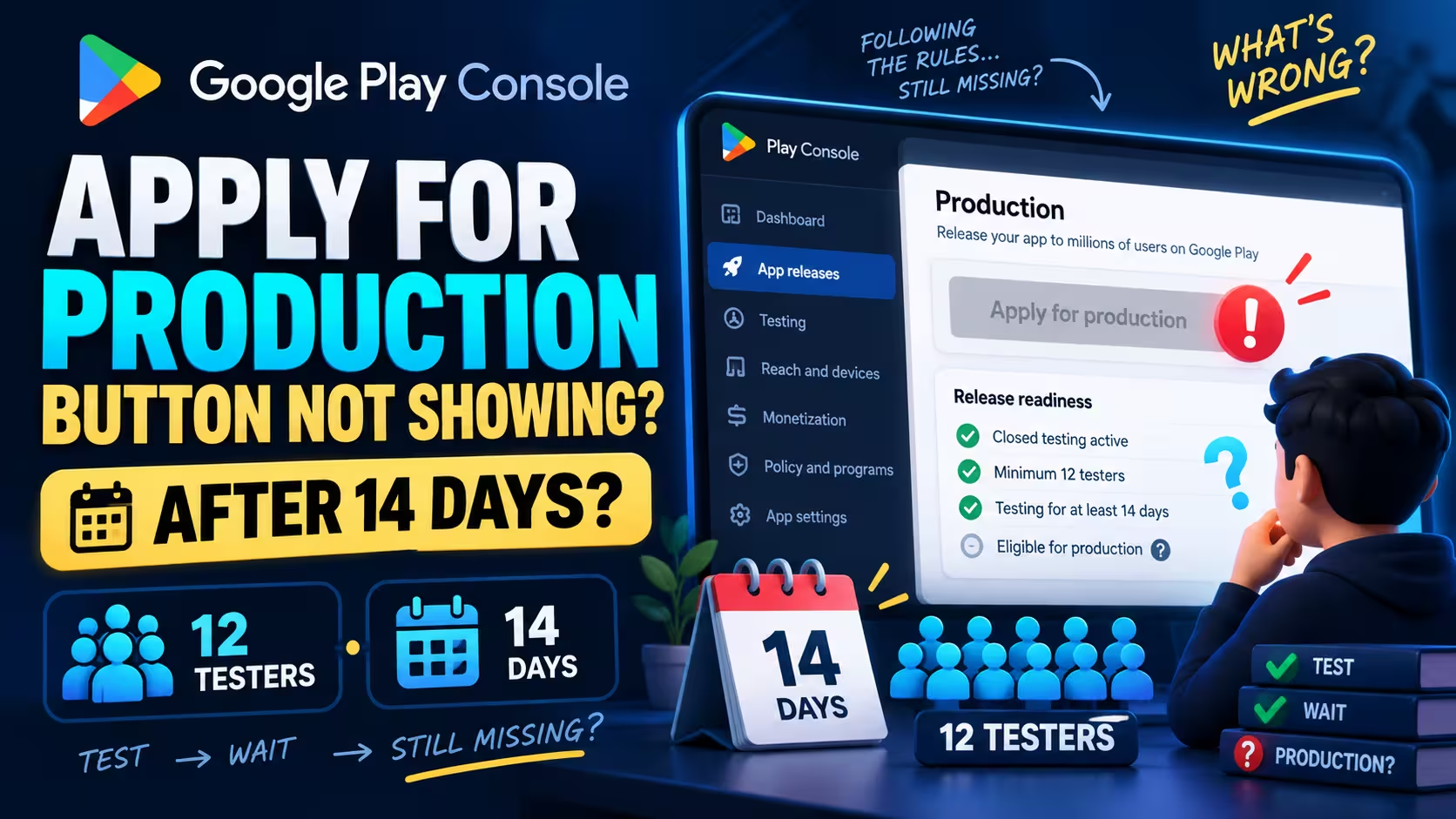
For personal Google Play developer accounts created after November 13, 2023, the application starts on the app's Dashboard after at least 12 testers have remained opted into its closed test continuously for the preceding 14 days. If the button is missing or disabled, read the card's two values, confirm the track and the enrollment, and ask the account owner to compare the same app.
Check the signed-in account first: in our own tests and in two public reports, the button appeared only for the account owner's Google account, not for an admin or a second Google account. Google's documentation does not state this, so treat it as an observation to test, not a rule. No verified universal unlock delay for this button was found as of September 11, 2026; a newly published test link has its own documented availability delay, which is a different thing. Organization accounts are outside this particular requirement.
Use the checker below for a routed answer, or the ten-check list beneath it; the sections that follow explain each check.
What do you see now?
Findings so far
A local decision tree, not a Play Console check. It routes you to the screen to inspect; it cannot certify eligibility or predict approval. Every result carries its kind: a known blocker with its fix, an observation you still need to collect, a contradiction worth escalating, a different stage of the process, a button that was found, or an owner comparison to run.
Select a check to mark it done. The counter records what you have checked; it reads nothing from Play Console. The checker above asks different follow-up questions depending on your answers; this list is the same ground in a fixed order. Skip the list and start at the stage table
Sources by check: 1 testing requirements, app Dashboard; 2 testing requirements plus developer reports; 3 owner report 2023, owner report 2024; 4 test setup; 5 publishing states, release procedures, app bundle states; 6 countries and regions; 7 app Dashboard, device verification; 8 publishing states; 9 test setup, release procedures; 10 Help inside Play Console.
How the evidence labels on this page work
Evidence labels distinguish official guidance, developer reports, and interpretation where that distinction matters. Every source was opened on September 11, 2026; the full list is at the end of the article.
- Google documentationStated in a Google Play Console Help page. The link sits next to the statement.
- Developer reportWhat a developer reported in a public thread. It establishes that someone saw it, not that Google guarantees it.
- InterpretationA logical consequence of the documented rule, or an inspection task. Not a claim about Google's hidden refresh algorithm.
- Not verifiedNot established by the available sources or by the information supplied here: a circulating claim no opened source supports, or an observation you have not yet confirmed.
The rule in three numbers
At least 12 testers, each continuously opted in throughout the immediately preceding 14 days, at the moment you apply. Leaving and later rejoining does not combine separated periods. Testing requirements, account scope.
On this page
Are you missing the button, or has Google already reviewed your application?
The next step depends on whether you have applied already. A rejection email belongs to a later stage than a missing button, and an approved app needs release guidance rather than this checklist. Identify your stage first so you do not apply the wrong troubleshooting steps.
| What you actually have | Meaning to use | Next step |
|---|---|---|
| No application submitted; button missing or disabled | Pre-application diagnosis | Check the Dashboard and follow the checker or the ten checks above. |
| Application opens but cannot be submitted | Related submission problem, not a missing button | Preserve the exact error text. The questionnaire guide covers the form; section 7 helps diagnose a persistent error, and a backend or account issue may need Google. |
| Application submitted and awaiting decision | Application-review state | Read the current status. Review usually takes seven days or less, but can occasionally take longer. The owner receives the outcome by email. |
| Rejection or additional-testing message after applying | Review outcome | Read the specific feedback and follow the denial-recovery guide. Historical wording: "Your app isn't ready for Google Play production yet". |
| Access approved but the app is not public | Release and publishing state | Test and release, then Production, then the release requirements. Approval enables the Production and Open testing tracks; a production release is a further action. |
| Organization account, or a personal account you can confirm was created before November 13, 2023, with no such requirement shown | Outside this specific requirement | Ordinary release guidance and whatever notices the account actually shows. Compare account types in the personal versus organization guide. |
The first row, no application submitted with the button missing or disabled, is the case this page diagnoses. Stage distinctions: testing requirements, release procedures, account registration; the rejection heading is a developer-reported historical UI string.
One more distinction
An enabled Apply for production button is not a promise of approval. Google evaluates the testing process after you apply and may ask for more testing even when the eligibility card was complete. Eligibility to apply and a substantive approval are different steps, and developers in the threads reviewed confused them repeatedly.
Open the selected app's Dashboard and read the eligibility card
Start with the app's Dashboard, where Google documents the application step. Not Play Console Home, and not the Production track: the documented sequence is select the app, open Dashboard, click Apply for production, and answer the questions that follow the click. Read the app Dashboard's eligibility card first, and do not substitute an installation statistic or access-list size for the participation and duration checks.
- 1Play Console
- 2Select the app
- 3Dashboard
- 4Apply for production
- 5Answer the questions
Navigation verified against testing requirements and app Dashboard.
Copy three things before you do anything else
Copy the complete label with each number. A tester count and a continuous-day milestone describe different things, even when both display 12.
Where to find the current opted-in count
The eligibility card on the app Dashboard is the primary place to look for this check, if your Console exposes it. The Testers tab under Closed testing manages who is allowed to join; an install statistic measures something else again. The table below is the whole point of this section: six things developers read as interchangeable, and what each one actually establishes.
| Number or record | What it establishes | What it does not establish |
|---|---|---|
| Emails on an allowed tester list | People permitted to join | Actual acceptance, uninterrupted participation, meaningful use |
| Google Group membership | Membership of the configured access group | Completed test enrollment |
| Install or installed-audience statistic | The installation metric stated on that screen | The same count as currently qualifying test participants |
| Current opted-in count on the eligibility card, if exposed | Current reported participation | That every participant has completed the duration |
| Continuous-day milestone on the eligibility card, if exposed | The Console's displayed progress toward this milestone | A full individual roster, or an approval guarantee |
| Sessions, daily users or feedback | Activity and feedback evidence | Interchangeable proof of program opt-in |
The tester-list, Google Group and engagement rows: Set up a test and testing requirements. The install-statistic and eligibility-card rows describe fields that developers reported (Google Groups, Reddit) and that our own capture below shows; not every Console shows all of them.
What if the Dashboard looks different?
The capture below is our own Play Console, sanitized, showing the card in its disabled state. Its capture date was not recorded, and Google changes Console wording without a policy date, so treat the labels as an orientation aid rather than the current exact text. The menu path above is verified against current documentation; the card's full appearance is not. If your card differs, use the actual task text you see, and report that text rather than this image.
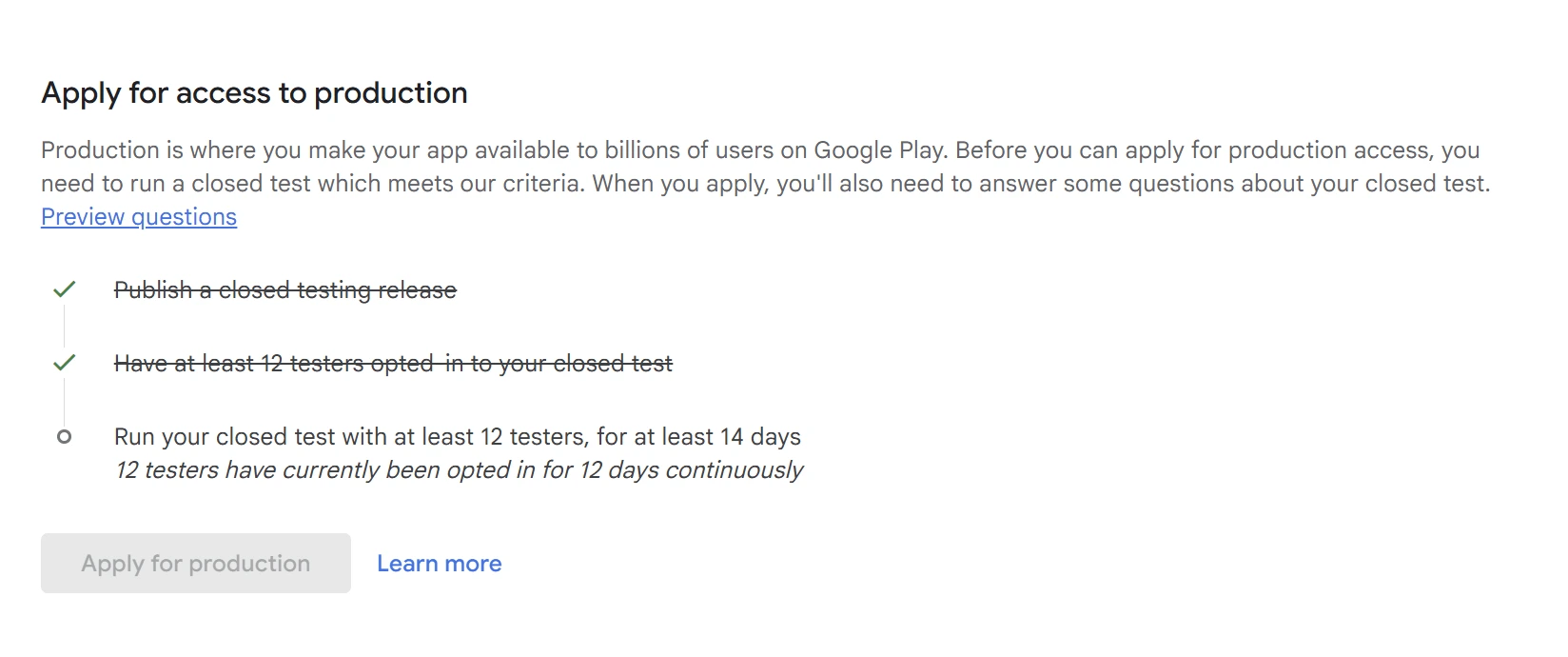
Read it as two values, not one
In this capture the count task is struck through (met) while the duration task is still open at 12 of 14 days. A card that says "12" in two places is reporting two different things. If yours shows a count below 12, go to section 4; if the count is met and the days are short, go to section 5.
No eligibility card at all?
Confirm first that you have selected the right app and are signed into the right account. Then check the account type and whether production access has already been granted: the requirement applies to personal accounts created after November 13, 2023, and an approved app shows release tasks instead. Follow any explicit Console notice. Missing UI on its own does not prove an organization account, an approval or a permissions fault. Compare account types in the personal versus organization guide.
Sign in as the account owner, or ask the owner to check
Developer reportAn account-owner comparison resolved this symptom in two historical developer reports: in December 2023 a developer whose testing period had finished found that the owner could see and use the button when the developer could not, and in March 2024 a Stack Overflow asker answered their own question the same way. Both are self-reported and predate the current 12-tester rule, and a later commenter on the second thread was already the owner and still blocked.
Our observation: across the closed tests PrimeTestLab has run, the Apply for production button appeared only when the Console was opened with the developer account owner's Google account. Admins and users saw it disabled or missing, and so did people who own the account but were signed in with a second Google account that had only been added as a user. That is first-party experience, not a Google statement, which is why the check comes first and costs nothing.
Google's permissions page documents owner, admin and user roles and delegable release permission; it does not say who may submit this application. So this is a cheap early comparison, not a permission rule.
The owner comparison, step by step
- 1Check which Google account is signed in. If it is not the account owner's, sign in as the owner (or ask the owner to open the same app independently) and read the Dashboard. Do not share credentials to do this.
- 2Compare the two views: is the Apply for production button present, enabled, disabled, or absent for each of you? Note the exact wording under it for both.
- 3If the owner can apply, the owner completes the application using accurate testing records. Investigate your own permission separately afterwards; do not change broad permissions blindly.
- 4If the owner is also blocked, the owner comparison has not resolved the issue. Continue with the remaining checks and record what each account can see.
Owner report, December 2023 (Reddit); owner report and already-owner follow-up, March 2024 (Stack Overflow); account permissions (Google).
Do not
Do not transfer account ownership, rename a permission, or add yourself as an admin on the strength of these two reports. The outcome is one of three: the owner can proceed, the owner is also blocked, or the comparison has not been done yet. None establishes more than it shows.
Check whether the displayed tester count is actually below the requirement
An invitation list does not prove that its members joined the closed test. Being on the list is permission to join; each tester still has to open the closed-test link and opt in, and a Google Group member still has to join the test. When the count looks low, start by checking these four explanations, each with a different fix.
Four reasons the count looks low
- AInvited but never joined. The email is on the list; the person never opened the link, or opened it with a different Google account. Fix: the tester opts in with the permitted account.
- BJoined the internal test instead. Internal testing does not satisfy the closed-test requirement, and an internal participant is ineligible for the closed test until they leave the internal program and opt into the closed one. Putting the same email on both lists does not do this for them. Fix: leave internal, then join closed.
- CConfirmed opt-out. A tester left. Their earlier period does not carry over if they rejoin later. Fix: keep everyone else enrolled; add a genuine replacement who builds their own 14 days.
- DWrong metric. You are reading installs, daily users or list size. Fix: go back to the Dashboard text (section 2).
The corrective action is always the same kind: obtain valid closed-test participation. Renaming a group, pausing the internal track, or re-uploading a build does not turn a non-participant into a participant.
Set up a test: opt-in, Google Groups, internal cap of 100 testers per app, leaving internal before joining another program; testing requirements; the same-email-on-both-tracks configuration is a developer report.
Confirm participation with your testers
Send this, adapted, to every person on the list. It asks them to check the right things without inviting anyone to invent activity. Their replies help you investigate enrollment; use them alongside the Dashboard's participation and duration information, rather than treating replies or list size as proof of eligibility.
Please check that you are using the Google account we added to this app's closed test. Open the closed-test link I provide and confirm you have joined that test. If you previously joined its internal test, leave that internal program before joining the closed one. Please stay enrolled through the required testing period, use the app's relevant features, and send any problems or feedback the way we agreed. Tell me if the app is unavailable or you cannot confirm your participation.
Setting up the list and the opt-in link: how to invite testers and get them opted in.
Who left?
The evidence reviewed does not establish a Console report that identifies the departing tester. If a count fell, ask each participant to confirm; do not expect the Console to name them. Related: added 12 testers but 0 opted in and Google Group closed testing not working.
Adding a buffer of spare testers
Recruiting more than 12 gives you spare qualified testers if one leaves late, provided the spares have independently completed the required continuous period. Spares added after the fact are new testers who each start their own continuous period. Whether to run a buffer is a judgment about your group, not a Google rule.
Short of testers?
If these checks confirm a tester shortage, compare testing support. If participation is already complete, continue with the checks below before buying anything: a missing button alone does not mean you need another paid test.
Read the continuous-day milestone instead of counting from upload day
A completed-looking calendar can still leave the qualifying window unfinished. The rule is about each tester's own uninterrupted period, ending at the moment you apply, not about how long the build has existed. Two weeks since upload proves nothing if the twelfth tester joined on day nine.
Interpretation Worked qualification examples
Illustrative scenarios that follow the documented rule. They are not observed customer data and not a description of Google's display algorithm. Counts are distinct testers with the stated history, not devices or sessions.
| Situation | What can be inferred | Action |
|---|---|---|
| 12 invited; participation unknown | Cannot determine | Confirm program opt-in and read the Dashboard. |
| 12 currently joined; only 11 have the complete 14-day history | Not established yet | Preserve existing enrollment and allow the twelfth history to complete. |
| 13 each completed the period; one leaves before you apply | 12 remain with complete history | A dropout alone does not logically erase the remaining histories. Recheck the Console. |
| 12 completed the period; one leaves; a new person joins today | Only 11 have complete history | The replacement does not inherit the departing person's days. |
| Dashboard shows complete, but current participation contradicts it | Cannot certify eligibility from the visible button | Preserve evidence, confirm participation, seek support if the contradiction remains. |
| Uploaded two weeks ago, but the qualifying group joined later | Upload age does not establish the group's history | Use the eligibility milestone, not the file-upload date. |
Logic follows App testing requirements (continuous opt-in; separated periods do not combine). The counter-drop cases are developer reports with no confirmed cause.
A replacement tester does not inherit another tester's days
The requirement is per tester, so a departed tester's history leaves with them. An already-qualified spare who stayed enrolled still counts; a newly recruited replacement starts at day zero.
Illustrative teaching strip, not a Console display. No time zone, refresh time or rounding rule is known, so it cannot compute an unlock date.
Do not build a countdown
No verified time zone, UTC boundary, refresh frequency or per-tester timestamp export exists in the sources reviewed. A "midnight" trick or an hourly countdown is guesswork. Read the milestone; that is the only clock Google shows you. More on the recency rule: does the 14 days have to be the most recent 14 days?
Confirm release availability and resolve explicit notices
Internal-test activity cannot repair a missing closed-test qualification, and a closed test nobody can install cannot build one. Confirm that the track is the closed one, that a closed build is actually being served, and that the intended testers can reach it with their own Google Play account country. Prefer a manual check? The ten checks near the top cover this in a fixed order.
The documented closed-track path
- Test and release
- Testing
- Closed testing
- Manage track
- Testers
This is the configuration screen. It proves who is allowed, not who has joined. Test setup.
Draft items, active or archived app bundles, and track status
These labels belong to different objects. A draft is an item or release, Active and Archived describe an app bundle, Superseded is a testing-track fallback status, and removal or suspension is enforcement on the app. Reading one as another is how an ordinary update turns into a false reset diagnosis.
| Label and what it belongs to | What it means | What it does not mean |
|---|---|---|
| Draft (an item or release) | The item or release has not been sent for review. Items are not sent for review until you click Send for review. | That testers have a live build. A draft is not evidence anyone received anything. |
| In review (an update) | The submitted change is queued with Google. New submissions while changes are under review can delay that review. | Which earlier build is being served, or that the participation period restarted. Check which app bundle is Active. |
| Active or Archived (an app bundle) | Active means the bundle is currently being served to users on that track; Archived means it no longer is. | That the whole test failed. An earlier bundle archived by an update is not, by itself, a lost history. |
| Superseded (a testing-track fallback status) | A track status: the track's active bundles are fully shadowed by higher-version-code bundles on its fallback track. Its testers receive the fallback builds instead. | A lost participation history. Read what the Dashboard milestone reports. |
| Paused (a track) | Google lists Pause track under ending a test: testers stop receiving updates, and the app they installed stays on their devices. | A particular effect on the milestone. Neither "always resets" nor "never affects" is supportable from the sources; record it and read the milestone. |
| No active releases (the app) | Updates have not been rolled out on any track, or the updates were rejected. Check the relevant track and review status. | This is not simply another name for "production has not launched". It also does not, by itself, establish removal, suspension, or a testing-history reset. |
| Removed or Suspended by Google (enforcement) | Enforcement states with different recovery paths: removal is answered with a policy-compliant update, suspension with a successful appeal. | An effect on the milestone. The sources document the enforcement state and its recovery, not what happens to your testing history. |
Draft and review: publishing overview. Active and Archived: app setup and app bundle states. Superseded and Pause track: test setup. App and enforcement states: publishing states. Release actions: release procedures.
Updating the app during the test
Google recommends continuing closed testing while you fix reported issues and update the app. Check which build is available and what the Dashboard now reports. Do not interpret an update alone as proof that the qualifying period restarted. The longer discussion is in does updating the app reset closed testing? Testing requirements.
A newly published test link can take a few hours to become available
Google documents that a first test link, and later changes to the test, can take several hours to become available to testers. That is a distribution delay for the link, not evidence of a standard unlock interval for the Apply for production button, and it says nothing about when any tester's participation began. If a tester reports the app as unavailable, check the release state and the countries above before waiting. Test setup.
If a tester says the app is unavailable
Closed-track availability follows the country on the tester's Google Play account, not the country they are currently in, and the closed track's Countries/regions can differ from production. Check the permitted account, the actual enrollment and the Active closed release, then compare the track's countries with that account country and record the exact error. Walkthroughs: app not available to testers and testers in different countries.
Account verification, setup, or policy notices
Read the specific notice and follow its linked action. Do not change your target SDK, your countries or your permissions because a generic article lists them; any change should address an issue the Console actually reports. Three notices come up often enough to name:
Google documentationAndroid device verification
A separate requirement for new personal accounts. The owner opens Play Console Home, selects the verification task, follows View details, and completes it in the Play Console mobile app on a non-rooted physical device running Android 10 or later. Its completion does not certify the testing requirement. Guide: Android developer verification.
Google documentationIncomplete setup task or release error
Mandatory Dashboard setup tasks show a green tick and strikethrough when done. A disabled Create new release can indicate outstanding tasks. That is a different button from Apply for production, but an explicit open task is worth finishing before you escalate.
Google documentationRemoved or suspended by Google
Enforcement states with documented recovery paths: a policy-compliant update, or an appeal. Their effect on your testing history is not documented, and no amount of tester activity substitutes for reinstatement.
Device verification, app Dashboard, release procedures, publishing states.
Everything appears complete but the application is still unavailable
The circulating claim of a normal 48 to 72 hour wait for this button Not verified is not established by public evidence. The one comment in the threads that names a figure gives a different one, no thread measures an actual missing-button resolution, and the seven-day figure people quote is the application review time, a different clock. If a requirement is visibly incomplete, the fix is the corrective action in sections 4 to 6. If every relevant check appears complete and the application is still unavailable, escalate with evidence rather than waiting.
Before you write
- App and package name, so support can find the right record.
- Owner comparison done (section 3), with both results noted.
- Current release state from Latest releases and bundles: track, status, which bundle is Active, and the last rollout event.
- Explicit notices on the app Dashboard and Play Console Home: verification, setup, policy. "No notice seen" is a valid answer; "Not checked" is a different one.
- Exact milestone text, quoted, with the date and time you read it and your time zone.
The support route is the Help section inside Play Console (Google's Help Center notice). A specific packet gives support clearer evidence to investigate and reduces the need to ask you for basic details again; a developer stuck in repeated cycles reported that a general request drew a general reply.
Build support packet
Build a Play Console support packet
Fill in what you know. "Unknown" is a valid answer for every field; the message keeps it visible rather than inventing completion.
This builder creates a draft in your browser. It does not submit your message to Google. Review the draft, then send it yourself through Play Console Help. Do not enter passwords or other secrets.
The checker changed after these findings were imported. Press Build support packet again to refresh them, or tick the box to keep them as written.
Refresh the imported findings from the checker, or tick Keep these findings as written.This draft is based on the details you entered. It has not been sent.
The details or checker findings changed after this draft was built. Rebuild it, or confirm that you have reviewed it as it stands.
Next: open Play Console, use Help, and paste the reviewed message and attach any screenshots through Google's own workflow.
Static template, no JavaScript needed Show the template
Fill each bracket from what the Console shows; write Unknown or Not checked where that is true. Do not include passwords, recovery codes, signing keys or tester personal data beyond what Google asks for. A complete report helps support investigate; it does not guarantee a particular response.
Subject: Production access application issue in Play Console for [package_name]

Hello Google Play Developer Support,

I need help with the following issue.

Issue: [issue_category]
App: [app_name] ([package_name])
Account type: [account_type]
Account creation date: [creation_date]
Account owner comparison: [owner_result]
Observation date/time and time zone: [observed_at]

Dashboard wording:
[dashboard_text]

Closed track and release details:
[track_and_release]

Publishing status:
[publishing_status]

Account, app or policy notice:
[notice_text]

Checks and actions already completed:
[actions_taken]

Screenshots available: [screenshots_available]

Please clarify which requirement or account condition prevents this production access
application from being available or submitted, and the appropriate next action. If the
visible status is inconsistent, please advise how it should be investigated.

Thank you.
Take the next step that matches your finding
Most findings need no purchase at all. A managed test is the answer only where the finding is participation or continuity incomplete; the table below shows the rows where it helps partly and the rows where it does not help at all. It cannot speed up Google or unlock a suspended app. Application in review, already approved, and accounts outside this requirement are routed in section 1.
| Finding | Next step | Does managed testing help? |
|---|---|---|
| Application found or enabled | Use the questionnaire guide and describe only real testing. | No. Nothing to buy merely to click Apply for production. |
| Participation or continuity incomplete | Correct enrollment, keep genuinely engaged participants, and monitor the milestone. | Possibly. Managed recruitment and coordination helps when you cannot hold an appropriate group yourself. See how it works. |
| Wrong track or unavailable closed release | Fix the exact configuration or delivery issue and confirm participation. Track guide: internal vs closed vs open. | Only for setup help. Testers cannot fix a track that is not serving a build. |
| Rejected application | The denial-recovery guide, with the real rejection text. | Only when the feedback calls for better testing. |
| Explicit policy, device or account notice | Follow the specified verification or enforcement route. | No. Paid testers cannot resolve a policy, device or account notice. |
| Owner still blocked with apparently complete evidence | Copy the packet from section 7 and use Play Console Help. | No. Asking Google about a contradiction is free. |
| Insufficient information | Inspect the screen your checker result names; leave the fields you could not check as "Unknown". | No. Do not buy a fix for an undiagnosed issue. |
Where managed testing fits
If your finding is participation or continuity incomplete, PrimeTestLab supplies 12 opted-in testers on real devices, held at or above the minimum for the full 14 days, starting from $19.99. That is a testing service: we run the test and keep the group enrolled. Google decides production access on its own review, and nobody can promise that outcome.
A UI check, not a fix: after recording what you see, reloading the page or comparing the same account in another browser can rule out a stale view. It cannot satisfy a requirement or bypass a missing prerequisite.
Frequently asked questions
14 days completed but I cannot apply. What should I check first?
First confirm you are signed in with the developer account owner's Google account: in our own tests and in two public reports the button appeared only for the owner, although Google's documentation does not state this. Then open the selected app's Dashboard and read the eligibility card's text in full, and confirm that you are looking at closed-test participation.
I added the tester emails. Why is the count lower?
Being on the list is only permission to join. Confirm that each person used the intended Google account and joined the closed program, especially if the app also has an internal test.
Does internal testing count toward the requirement?
No. It does not substitute for the closed-test eligibility condition. Move affected participants through the documented leave-internal, join-closed process, then rely on the closed-test milestone.
One tester left. Does everyone start again?
Do not assume that everybody's individual history is erased. What matters is whether enough currently enrolled participants still have the required uninterrupted history. An already-qualified backup still counts; a new replacement starts its own 14 days. This is an inference from the rule, not a Console reset specification.
Do my testers have to open the app every day for the button to appear?
The reviewed public policy does not state a fixed daily-opening or minutes-per-day quota for the button. Genuine engagement still matters in Google's assessment of the testing process, so the absence of a published quota is not permission to run an empty test.
Should I just wait 48 to 72 hours?
Not for the button. No verified standard unlock interval for the Apply for production button was found in the evidence reviewed; a newly published test link has its own documented availability delay of a few hours, which is a different thing. Recheck the displayed state and keep the test intact; if a genuine contradiction remains, send the evidence to Console support rather than treating an invented countdown as a requirement.
Will uploading a fixed AAB restart my test?
Google recommends continuing closed testing while you fix reported issues and update the app. The reviewed sources do not establish a universal restart of the participation period from an updated app bundle. Inspect the Active closed release and the Dashboard milestone; do not discard the track, remove testers or repeat the entire cycle on the strength of an unanswered forum claim.
I am the account owner, or an admin, and everything is complete. Now what?
If you are an admin, or the owner signed into a different Google account, switch to the owner's account first. Then capture the full Dashboard text, the active closed release, your account-role confirmation and any notices, then use the Help section inside Play Console. This article cannot determine whether the problem is a delayed display, a hidden prerequisite or a backend error from that statement alone.
Google says my app is not ready for production. Is that a missing-button bug?
If the message followed an application, treat it as a review outcome and read the specific feedback. Use the denial-recovery guide, not this pre-application checklist or a generic synchronization wait.
Does approval make my app public automatically?
No. Production access permits the next release stage. Follow the production-release and publishing requirements before assuming the app is publicly downloadable.
Bottom line
Read the Dashboard's participation and duration information separately. If the count is below the minimum, investigate enrollment and retain or recruit enough eligible testers. If the count is sufficient but the continuous period is unfinished, keep the group enrolled and continue testing until the milestone is complete. If the relevant checks are complete but the application remains unavailable, collect the evidence and contact Play Console Help. Do not assume a universal extra waiting period will unlock the button.
Official Google documentation
Developer reports cited on this page
Every source on this page was opened on September 11, 2026. Undated Help pages do not expose a reliable update date; the check date is not the publication date of those pages. Community threads establish what a developer reported, not Google policy.